SSH Session Recording
Pomerium Enterprise
This article describes a use case available to Pomerium Enterprise customers.
Overview
Pomerium supports recording, storage, and playback (via Enterprise Console) of interactive SSH sessions for auditing and compliance needs. To enable session recording in Pomerium, you will be required to set up the session recording extension, a cloud or self-hosted blob storage provider, make the relevant policy changes to routes and connect the Pomerium instance to the Enterprise Console.
Once recording is enabled, see Session Recording for Audit and Compliance for how to operate it as defensible audit evidence: WORM storage and retention, audit-log correlation, and SOC 2 / PCI DSS / HIPAA / FedRAMP control mappings.
This guide assumes you have already configured Native SSH Access, which is a prerequisite for session recording.
Recording SSH sessions carries inherent risk. Anything the user sees in their terminal is recorded as-is without modification or redaction. This can include sensitive information such as private keys, passwords, logs, etc.
The session recording capability is not present in Pomerium binary distributions. This feature is provided by a separate extension which Pomerium must load from disk on startup. If the extension is not loaded, Pomerium does not have the ability to record SSH sessions, even if configured to do so.
Setup
1. Obtain the session recording extension
All enterprise extensions are available as part of the image docker.cloudsmith.io/pomerium/pomerium-enterprise/pomerium-enterprise. This is a drop in replacement for pomerium/pomerium images.
Similarly, the enterprise extensions are available as part of the image docker.cloudsmith.io/pomerium/pomerium-enterprise/ingress-controller-enterprise. This is a drop in replacement for pomerium/ingress-controller images.
The extensions are available in the /extensions directory. The session recording extension is mounted at /extensions/session_recording_extension.so
The session recording extension is also distributed as a separate container image:
docker.cloudsmith.io/pomerium/enterprise/session-recording-extension
For official release versions of Pomerium, extension images will be tagged with that version (in the form vX.Y.Z). If you are using an unreleased version of Pomerium, or building it yourself, see below for instructions on finding the correct extension version.
Finding extension image tags
The extension image tag must match the Envoy version for the version of Pomerium Core you are using. There are several ways to find this version:
-
It is logged immediately upon startup:
{"level":"info","envoy-version":"20260519214603-7724aff26b06","version":"v0.32.5-rc.1.0.20260521140818-2483887bbf28-2026-05-22T18:07:36Z","time":"2026-05-22T20:05:30Z","message":"cmd/pomerium"}^^^^^^^^^^^^^^^^^^^^^^^^^^^ -
It will be displayed when running
pomerium --version:pomerium: v0.32.5-rc.1-99-g2483887bb+2483887bbenvoy: 20260519214603-7724aff26b06^^^^^^^^^^^^^^^^^^^^^^^^^^^ -
It can be found in the Pomerium
go.modin the version string ofgithub.com/pomerium/envoy-custom(only the part highlighted below)require (...github.com/pomerium/envoy-custom vX.X.X-XXX.X.20260519214603-7724aff26b06^^^^^^^^^^^^^^^^^^^^^^^^^^^...)
This image contains a single file, /session_recording_extension.so. See below for how to modify existing deployments to make this file available to Pomerium:
- Kubernetes
- Docker Compose
- Manual
For existing deployments:
apiVersion: apps/v1
kind: Deployment
spec:
  template:
    spec:
      containers:
        - name: pomerium
          image: docker.cloudsmith.io/pomerium/pomerium-enterprise/ingress-controller-enterprise:vX.Y.Z
      imagePullSecrets:
        # This should be the same image pull secret used for enterprise console
        - name: pomerium-enterprise-docker
  // ...
Alternatively, it is possible to use image volumes to mount the extension into the Pomerium Core container.
apiVersion: apps/v1
kind: Deployment
spec:
  template:
    spec:
      containers:
        - name: pomerium
          image: pomerium/ingress-controller:vX.Y.Z
          volumeMounts:
            - name: session-recording-extension
              mountPath: /extensions/
              readOnly: true
      volumes:
        - name: session-recording-extension
          image:
            reference: docker.cloudsmith.io/pomerium/enterprise/session-recording-extension:vX.Y.Z
      imagePullSecrets:
        # This should be the same image pull secret used for enterprise console
        - name: pomerium-enterprise-docker
services:
  pomerium:
    image: docker.cloudsmith.io/pomerium/pomerium-enterprise/pomerium-enterprise:vX.Y.Z
    # Use docker login to cloudsmith.io
For Docker Compose deployments, you can mount the extension image directly into the container with an image volume:
services:
  pomerium:
    image: pomerium/pomerium:vX.Y.Z
    # use docker login to cloudsmith.io
    volumes:
      - type: image
        source: docker.cloudsmith.io/pomerium/enterprise/session-recording-extension:vX.Y.Z
        target: /extensions/
        read_only: true
To manually extract the extension (session_recording_extension.so) from the container image:
$ ID=$(docker create docker.cloudsmith.io/pomerium/enterprise/session-recording-extension:vX.Y.Z) && \
    docker export $ID | tar -xf - session_recording_extension.so && docker rm $ID
These extensions are loaded into Envoy, not the Pomerium control plane. If you build Envoy yourself instead of using the pre-built binaries, or are an Enterprise customer and would like a copy of the session recording extension source code to build and/or audit yourself, please reach out to us at support@pomerium.com.
2. Configure the extension
Once the extension is accessible on the filesystem, Pomerium must be configured to load the extension by file path.
If using the enterprise images or using the example mounts from the previous section, the absolute path to the session recording extension will be
/extensions/session_recording_extension.so.
- Enterprise Console
- Config File
- Terraform
- Ingress Controller
In Enterprise Console, navigate to Settings > Global and add the path to the Extension File Paths list.

Extension file paths can be configured in the Pomerium config.yaml as follows:
| Config file key | Type |
|---|---|
envoy_dynamic_extensions | array of strings |
envoy_dynamic_extensions:
  - /extensions/session_recording_extension.so
resource "pomerium_settings" "test_session_recording_opts" {
  namespace_id = var.namespace_id

  # File paths to extensions to be loaded by envoy at runtime.
  envoy_dynamic_extensions = [
    "/extensions/session_recording_extension.so"
  ]
}
On the ingress.pomerium.io/v1 CR:
apiVersion: ingress.pomerium.io/v1
kind: Pomerium
metadata:
  name: global
spec:
  // ...
  envoyDynamicExtensions:
  - /extensions/session_recording_extension.so
3. Setup storage layer
Session recordings are stored in Blob (Binary Large Object) stores.
Pomerium uploads the following information to the storage layer:
- recording of the SSH session.
- metadata associated with the session, such as user information & Pomerium route information.
- metadata associated with the provenance of the recording, such as the version of Pomerium used to produce the recording.
- Core
- Enterprise bootstrap
- Enterprise
- Terraform
Uploading to blob stores requires a cluster ID, which is assigned by Pomerium Enterprise. A Pomerium Core instance must therefore be connected to Pomerium Enterprise at least once before it can upload recordings.
Configuring the bucket in Core alone is not sufficient — recordings will not appear in the Enterprise Console unless the same bucket is also configured in Enterprise.
For this reason, we strongly recommend configuring storage through Pomerium Enterprise or the Terraform provider.
blob_storage:
  bucket_uri: s3://example-bucket # see provider-specific configuration below
See the Session Recording Storage reference for full provider-specific URI parameters and credential setup.
The following configuration is available for Console to automatically create and assign a blob datastore to the Pomerium instance that bootstrapped the Console.
Via the Console config file:
session_recording_options:
  datasource_name: bootstrap
  bucket_uri: s3://example-bucket # see provider-specific configuration below
or via an environment variable:
SESSION_RECORDING_OPTIONS: '{"datasource_name": "bootstrap", "bucket_uri" : "s3://example-bucket"}'
or via a CLI flag:
--session-recording-options='{"datasource_name": "bootstrap", "bucket_uri" : "s3://example-bucket"}'
This feature is available for quickstart.
Restarting the console will re-assign this blob datasource to the Pomerium instance that bootstrapped the Console, which may produce undesirable behavior.
Changing the datasource configured from the startup options can overwrite previous datasources of the same name. It is recommended to set datasources via the UI, enterprise SDK or terraform for production deployments.
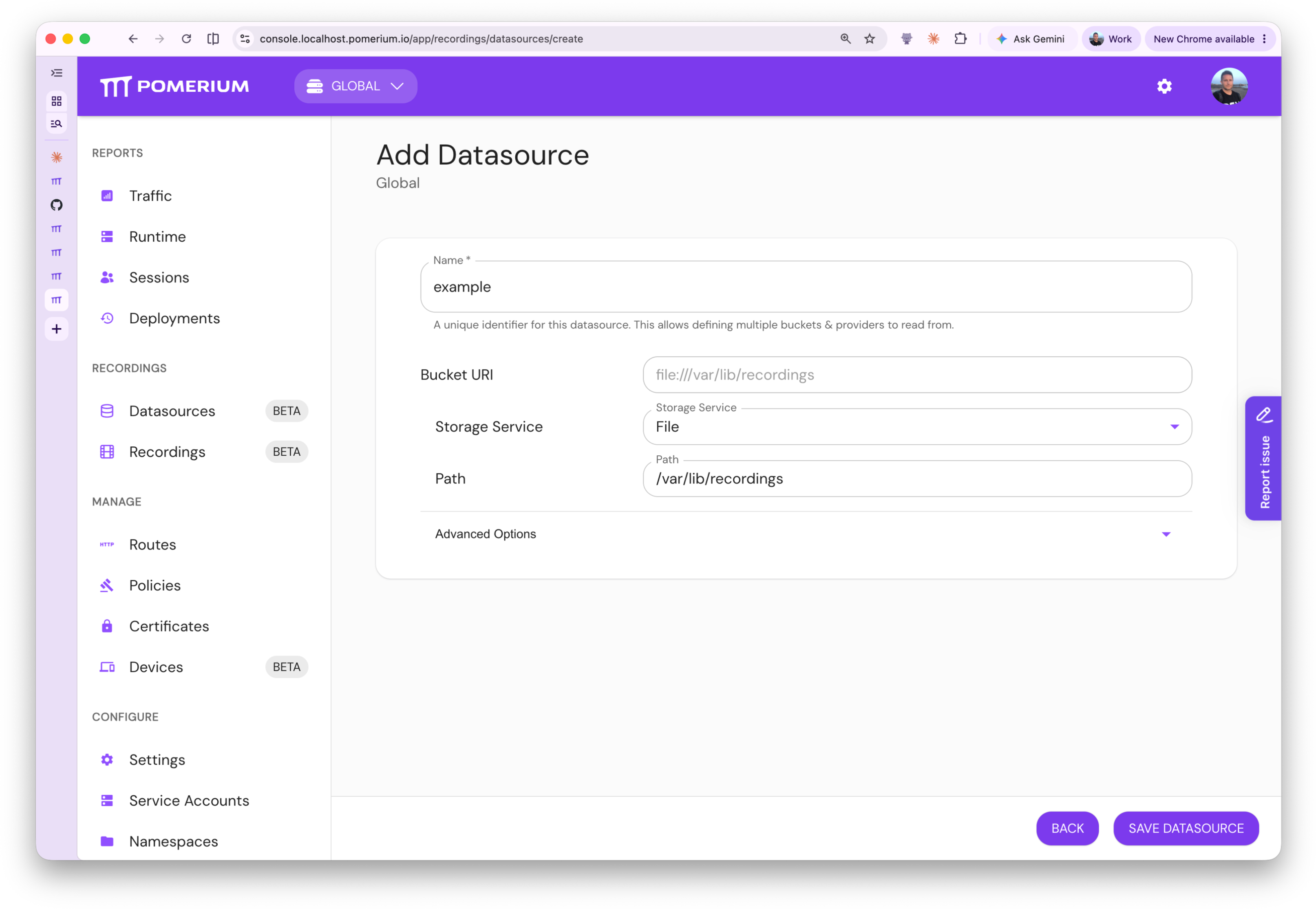
Click on the "Datasources" link in the side panel under the "Recordings" heading. Click the "Add Datasource" button to create a new datasource.
Each blob datasource is scoped per-namespace.
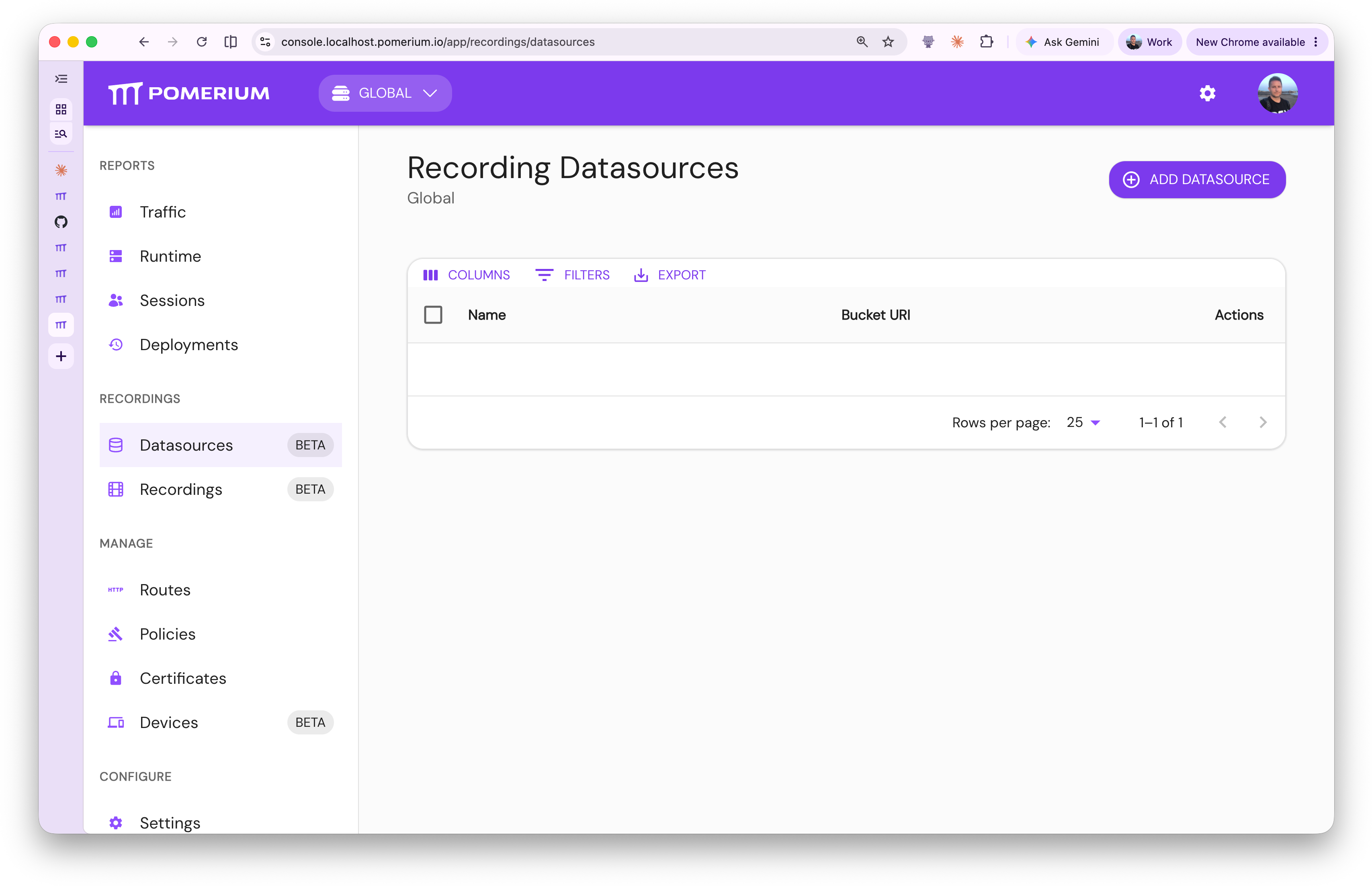
Configure the blob storage. In this example we use file paths.
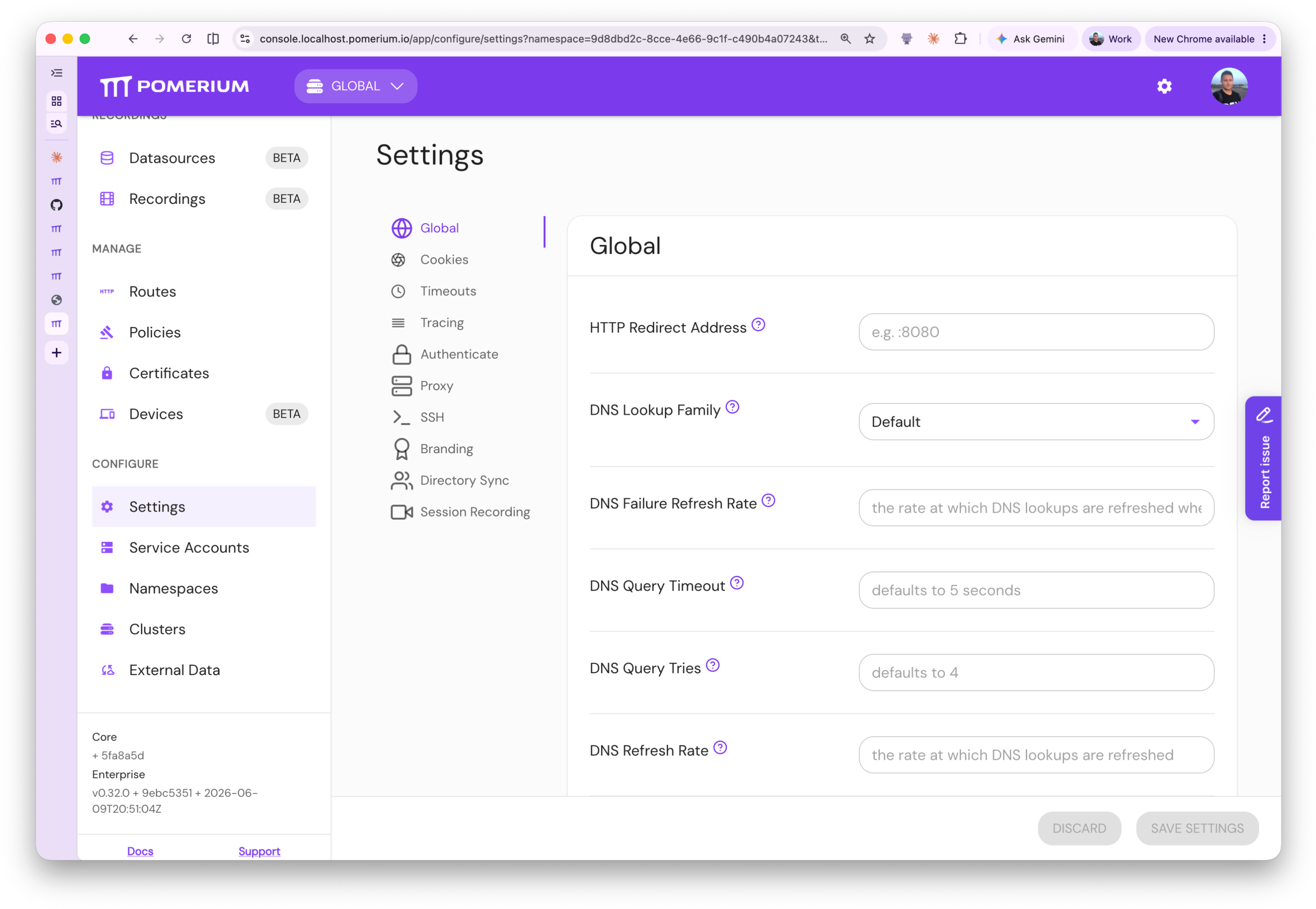
Navigate to the cluster settings for this namespace.
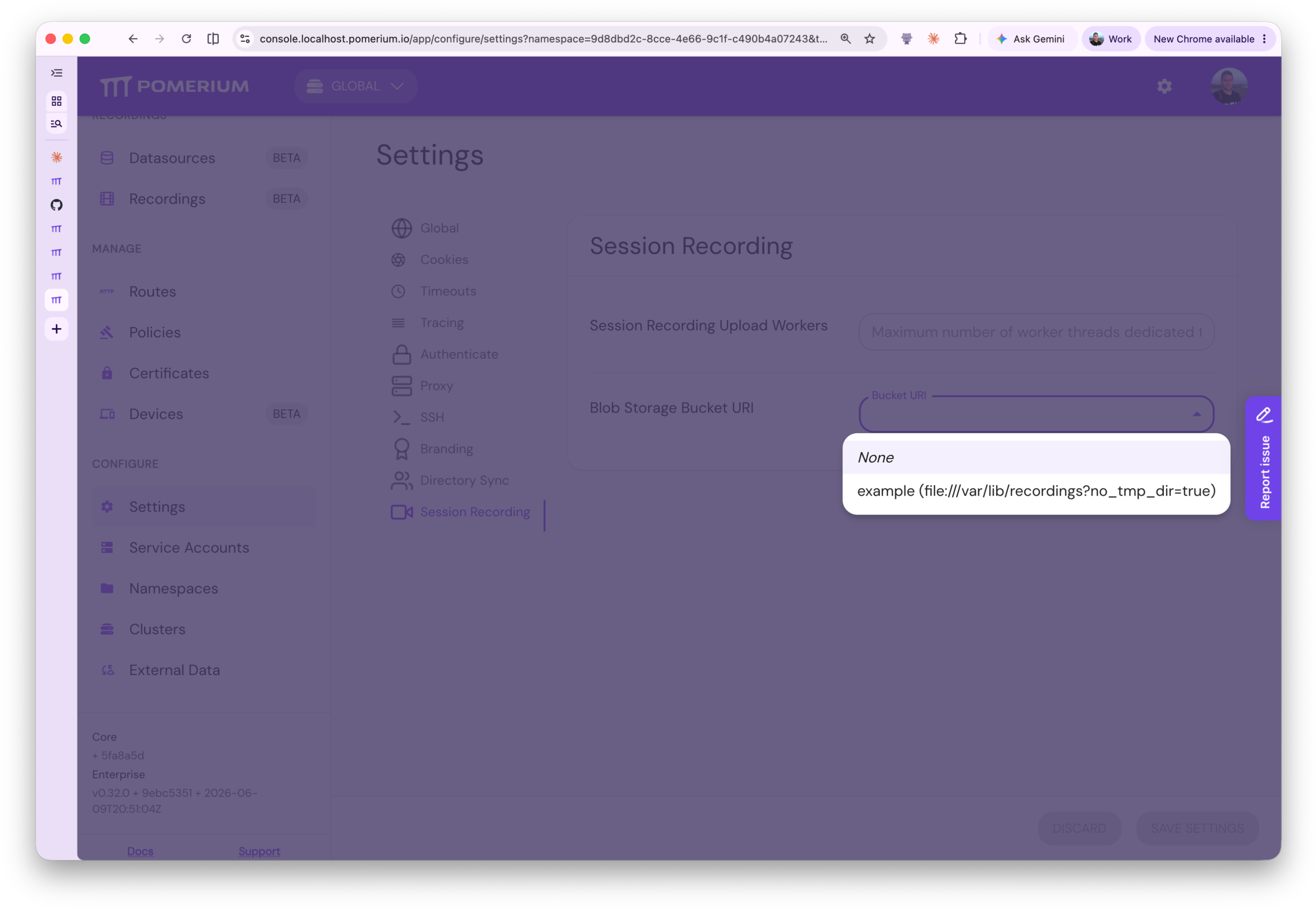
Set the blob storage from a list of available datasources configured for this namespace:
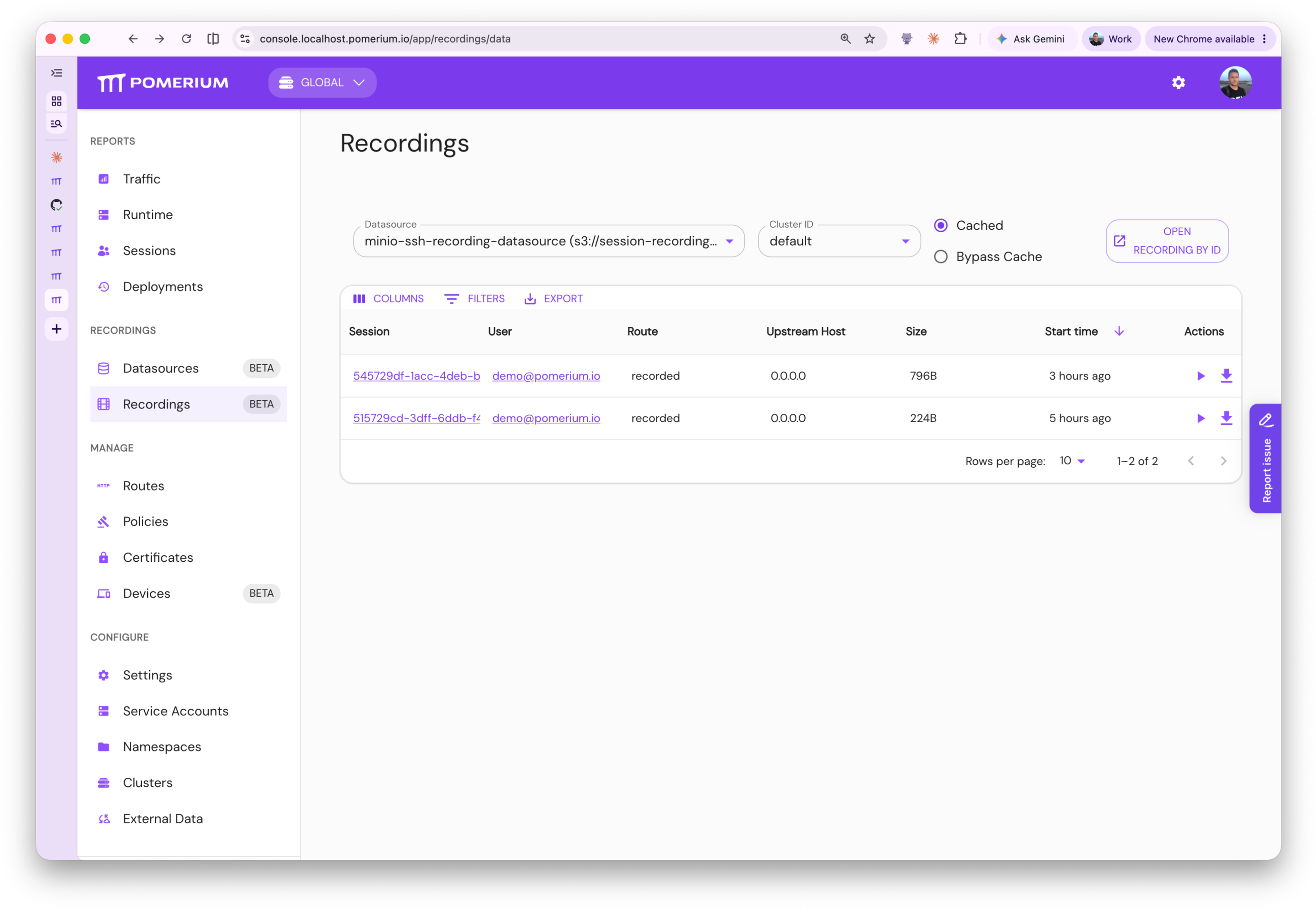
When users access an SSH route with session_recording.enabled=true, the recording will show up in the Recordings tab, where it is available for playback:
Setting up recording datasources for viewing in the Enterprise Console:
resource "pomerium_recording_data_source" "gcs_dev" {
  name       = "gcs_dev"
  namespace  = var.namespace_id
  bucket_uri = "gs://alex-test-bucket-session-recording"
}
Remember to pass this bucket to the Core instance associated with this namespace:
resource "pomerium_settings" "test_session_recording_opts" {
  namespace_id = pomerium_cluster.test.namespace_id
  blob_storage = {
    bucket_uri : pomerium_recording_data_source.gcs_dev.bucket_uri
  }
  # File paths to extensions to be loaded by envoy at runtime.
  envoy_dynamic_extensions = [
    "/extensions/session_recording_extension.so"
  ]
}
The Hash-based Message Authentication Code (HMAC) of the user id is generated from the shared secret Pomerium Enterprise uses. When rotating the shared secret, keep track of the previous secret in order to correlate against older audit logs.
4. Connect Pomerium instance to Enterprise
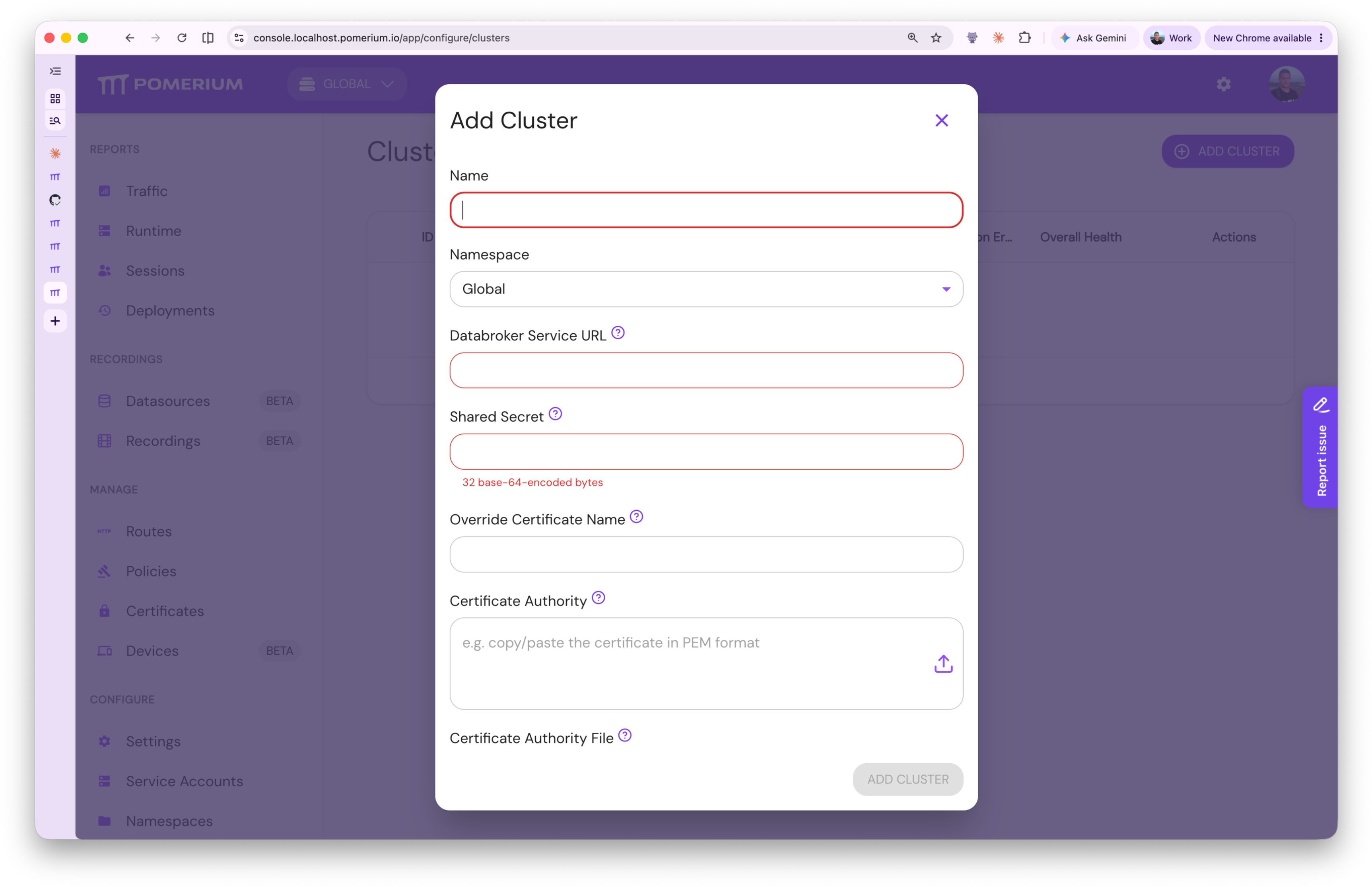
Connect the instance on which you want to record sessions to Enterprise. To do so, you will need the databroker service URL and shared secret of that instance and, optionally, the certificates required to connect to it.
- Enterprise
- Terraform
Navigate to the "Clusters" page using the side panel link (under the "Configure" heading), and click "Add Cluster":
resource "pomerium_cluster" "my-cluster" {
  name                   = var.cluster_name
  parent_namespace_id    = var.parent_namespace_id
  databroker_service_url = var.databroker_service_url
  shared_secret_b64      = var.cluster_shared_secret_b64
}
Route Configuration
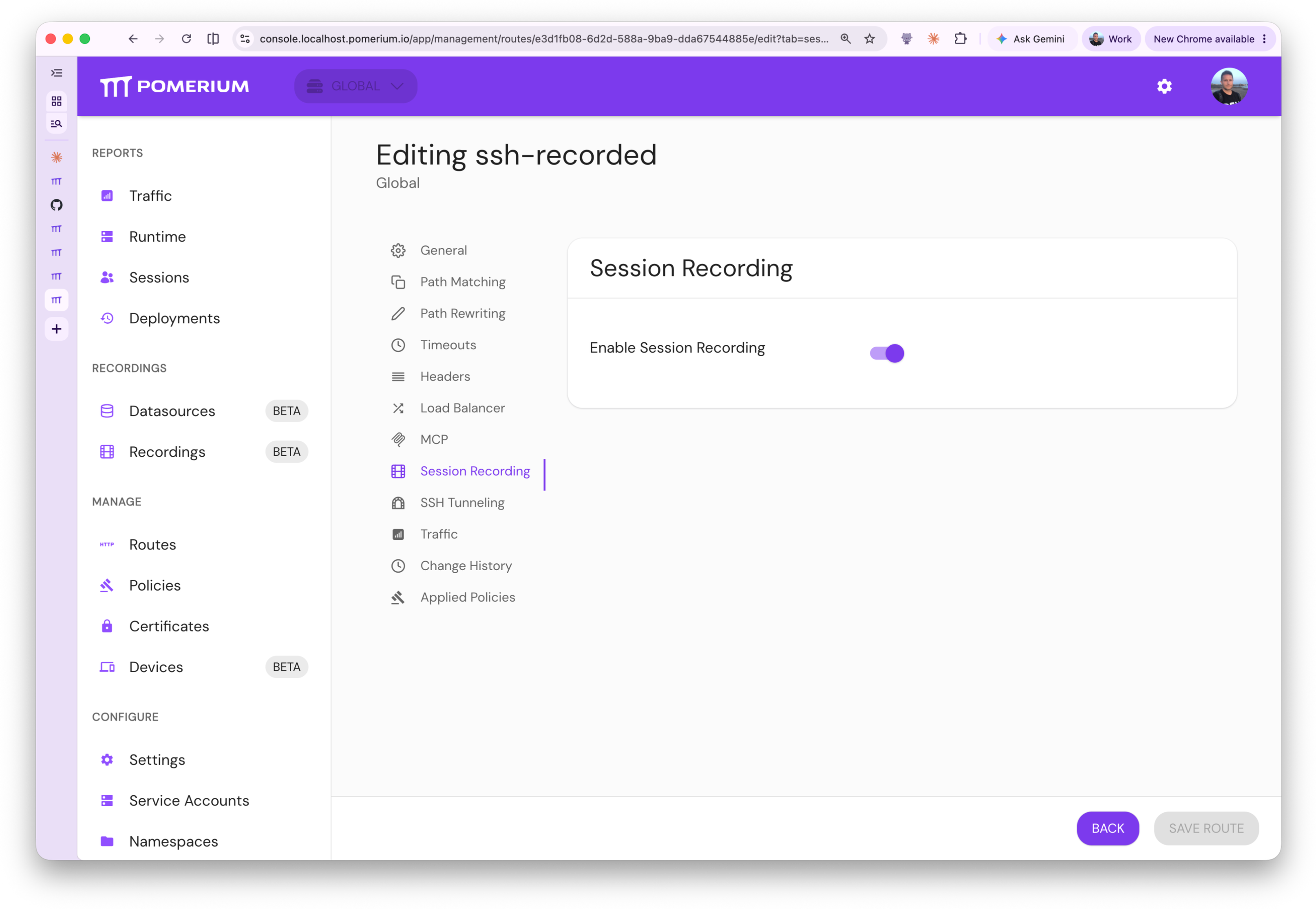
Recording is enabled on a per-route basis.
- Core
- Enterprise
- Terraform
Configuring session recording from a config file might look like:
routes:
  - from: ssh://example
    to: ssh://0.0.0.0:22
    allow_any_authenticated_user: true # replace with an actual policy
    session_recording:
      enabled: true # false
The session recording tab is available only for routes that have a valid SSH from target.
resource "pomerium_route" "ssh_recorded" {
  name         = "ssh_recorded"
  namespace_id = var.namespace_id
  from         = "ssh://terraform"
  to           = ["ssh://0.0.0.0:22"]
  policies     = [pomerium_policy.ssh_access.id]

  # Enable session recording for this route.
  session_recording = {
    enabled = true
  }
}
Verify Your Setup
After completing the steps above, confirm that session recording is working correctly:
-
Confirm the extension is loaded. Check the Pomerium Core logs on startup. You should see a log entry referencing the extension path and no errors related to
envoy_dynamic_extensions. -
Confirm storage is reachable. After starting Pomerium Core with recording enabled on at least one route, check the logs for successful upload messages. If the storage backend is misconfigured or unreachable, you will see upload errors at this stage.
-
Confirm recordings appear in Enterprise Console. Open an interactive SSH session through a route that has
session_recording.enabled=true. Then, navigate to the Recordings page in Enterprise Console. A new recording should appear within seconds of the session ending.
Accessing recordings
Playback
Session recordings can be replayed in Pomerium Enterprise. Navigate to the "Recordings" page using the side panel link (under the Recordings section) to view available recordings. They are available by Pomerium Enterprise Namespace and Cluster, and can only be accessed by the appropriate namespace administrator.
The recordings are also available for download. They will be downloaded in the format <recording-id>.asciicast.json. These files can be replayed by any terminal player that supports the asciicast v3 format. You can use the asciinema CLI to replay these recordings. For example:
asciinema play /path/to/<recording-id>.asciicast.json
Querying
The Enterprise UI can sort the table fields in ascending & descending order. Shift-click to sort by multiple columns.
The table filters can match the columns on specific criteria:
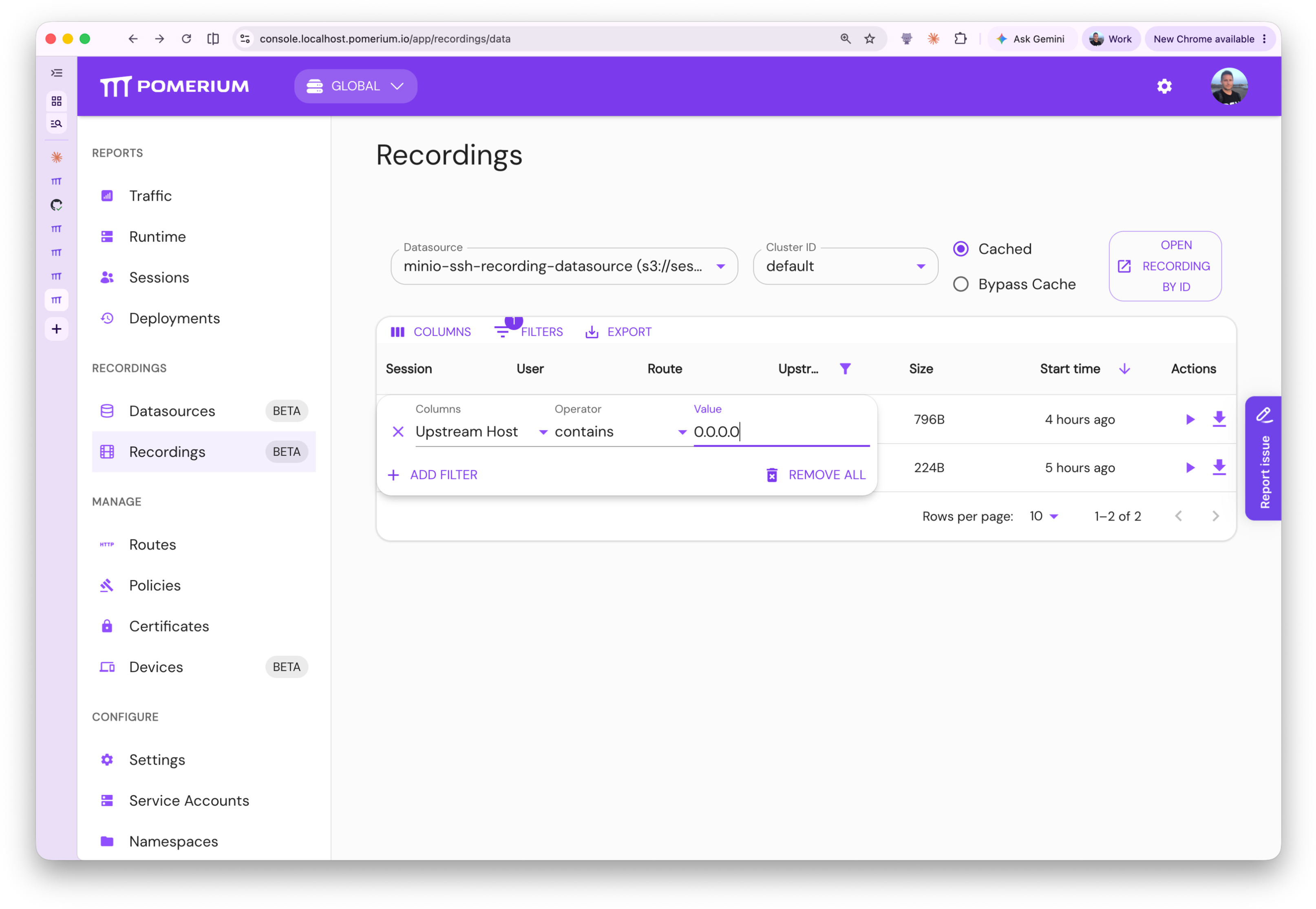
By default queries are run by making requests to the blob storage provider. This may become slow without caching. Please consult Performance Tuning (Access) for more information on how to speed up these queries.
For end-users looking for detailed analytical querying it is recommended to ingest the metadata.json for each recording into a purpose-built querying & analytics tool. It is then possible to replay this recording knowing its cluster-id, the namespace it was configured in, and its recording id. See Session Recording Storage for more details on the storage layer path structure & metadata contents.
Recording Contents
Session Recordings contain the raw Pseudo-Terminal (PTY) data sent from the upstream server to the downstream client, as well as terminal resize events.
Limitations
Some use cases are not currently implemented. If any of these are important to you, please reach out to us!
-
Currently, the recordings do not contain key inputs sent by the client; if the server does not echo those keystrokes (such as during password input) that information will not be recorded.
-
Currently, only interactive shell sessions are recorded. Other usages, such as running direct commands or transferring files do not produce recordings.
-
Compression is not yet supported.
-
Pomerium does not encrypt the recordings itself. This responsibility is delegated to the object storage layer.
Resource Usage Considerations
Recording a session incurs additional memory usage. In most cases, this usage will likely be very low, but it may be important to consider worst-case resource usage depending on your scale.
Recording data is buffered in memory only until it is written to the object store. Recordings are not buffered on disk. If there are many active recordings and the server cannot upload data to the object store faster than it is being recorded, more memory will be required to buffer the recording data.
In the worst case, each active recording will buffer at most 10-12MB of data. If this limit is exceeded for a given recording, the corresponding connection may be temporarily paused to allow the server time to catch up. If the server is unresponsive or sufficiently overloaded to where the buffer is still full after a few seconds, the corresponding session1 will be forcibly closed.
Memory usage limits are intended to combat abuse; the user would generally have to go out of their way to reach the conditions described above (assuming the server has sufficient compute and network resources available), though it is trivial to do so.
Performance Tuning (Upload)
SSH session recording is designed for high performance and minimal overhead. Not all workloads are the same, so there are a few config options that can be adjusted to optimize for your environment:
Worker Threads
On the Envoy side, the work of buffering, serializing, and uploading recording data is performed by a dedicated pool of worker threads. This is done to minimize latency overhead for the actual connections being recorded.
The default number of worker threads is 2. This can be adjusted depending on expected usage via the session_recording_concurrency config field. This value cannot exceed the number of Envoy worker threads (if it does, it will be silently lowered to match that value).
The optimal number of session recording worker threads to use depends on your environment and expected usage patterns. Unless you expect a very high volume of concurrent recordings, it should not need to be set much higher than the default.
Kernel Pipe Buffer Size
The session recording workers in Envoy upload recording data to Pomerium, which in turn uploads the data to external object storage. The workers in Envoy communicate with Pomerium via pipes shared with the Envoy subprocess. The maximum buffer size of these pipes is controlled by the fs.pipe-max-size sysctl parameter and can be increased for better throughput when processing large recordings.
The upload pipes (one per worker thread) will automatically be resized on startup to 4MiB (4194304) if allowed by the kernel, or otherwise to the value of fs.pipe-max-size if it is lower than 4194304. The default value of fs.pipe-max-size is usually 1MiB (1048576). If the process has CAP_SYS_RESOURCE, the pipe will be resized to 4MiB, ignoring fs.pipe-max-size.
Performance Tuning (Access)
The table in the Enterprise UI used to display recordings queries the blob storage provider directly. In conjunction with query filters, this can have a noticeable performance overhead. It is recommended to use the runtime flags for Enterprise:
--enable-session-recording-querier-cache=true --cache-dir=/path/to/cache
Omitting the --cache-dir option will persist session recording metadata in-memory.
These settings enable Pomerium Enterprise to periodically sync metadata to the file path pointed to by cache-dir.
Alternatively, you can specify these settings in the Enterprise config file:
enable_session_recording_querier_cache: true
cache_dir: /path/to/cache
This cache is shared with directory syncing for the Console.
For even larger amounts of recordings, it is recommended to rotate buckets periodically and to not reuse buckets between clusters that operate under high load.
Operations
Disabling session recording
To stop recording new sessions, set session_recording.enabled = false on the route (or remove the session_recording block entirely). Existing recordings in storage are not affected.
Removing the extension
To remove the session recording extension from a deployment:
- Disable recording on all routes.
- Remove the extension volume mount from your deployment manifest (Kubernetes, Docker Compose, or manual installation).
- Remove the extension path from
envoy_dynamic_extensions.
Removing the extension does not delete existing recordings from blob storage.
Bucket rotation
For environments with a high volume of recordings, rotate buckets periodically. Create a new datasource pointing to a fresh bucket, update the cluster settings to use it, and leave the old bucket in place for historical access. Do not reuse buckets between clusters that operate under high load.
Shared secret rotation
When rotating the Pomerium Enterprise shared secret, keep track of the previous secret in order to correlate older audit logs. The Hash-based Message Authentication Code (HMAC) of the user id used in audit logs is generated from the shared secret at the time of access.
For a complete guide on audit log correlation and integrity verification, see Session Recording Auditing.