Secure Cockpit with Pomerium
What this guide does
Cockpit is a web-based graphical interface for Linux servers. You'll put it behind Pomerium so that Pomerium handles single sign-on and per-route authorization before any request reaches Cockpit. Cockpit keeps its own login screen, which authenticates you to the host itself (over PAM or SSH), so the result is two layers: Pomerium decides who may reach Cockpit at all, and Cockpit then logs that person into the server.
When to use this guide
Use it when you want a single front door for Cockpit backed by your existing identity provider, instead of exposing Cockpit's port directly to the network. Pomerium does not replace Cockpit's host login; there's no supported way to hand Cockpit a Pomerium JWT or identity header, so Cockpit still prompts for host credentials. If you only need to reach Cockpit over a private network without browser SSO, a plain TCP route is a better fit.
Prerequisites
This guide assumes you've completed the Quickstart, so you already have Pomerium running and signing users in through the hosted authenticate service.
You also need:
- Docker and Docker Compose
- A domain you control for the Cockpit route (this guide uses
cockpit.yourdomain.com)
This guide uses the hosted authenticate service so you don't have to run an identity provider (IdP). To run your own instead, follow Keycloak + Pomerium and swap the authenticate_service_url / idp_* settings into the config below.
Configure Pomerium
- Pomerium Zero
- Pomerium Core
In the Zero Console:
- Create a Route. In From, enter
https://cockpit.<your-starter-domain>; in To, enterhttp://cockpit:9090. - Set the policy to Any Authenticated User (or scope it to the group that should manage the server).
- On the route's settings, enable Allow WebSockets so Cockpit's live terminal and metrics work, and enable Preserve Host Header so Cockpit sees the public hostname it expects.
Create a config.yaml. It routes cockpit.yourdomain.com to the Cockpit container, allows the WebSocket upgrade Cockpit needs, and preserves the host header so Cockpit's origin check passes.
# Pomerium Core configuration for Cockpit. Uses the hosted authenticate service, so
# you don't run your own identity provider. To self-host the IdP, see the Keycloak
# guide: https://www.pomerium.com/docs/integrations/user-identity/oidc
authenticate_service_url: https://authenticate.pomerium.app

# Obtain TLS certificates automatically from Let's Encrypt.
autocert: true

routes:
  - from: https://cockpit.yourdomain.com
    to: http://cockpit:9090
    # Cockpit upgrades to a WebSocket once you log in, so the route must allow it.
    allow_websockets: true
    # Cockpit checks the Host header against its configured Origins, so forward the
    # original host instead of rewriting it to the upstream address.
    preserve_host_header: true
    policy:
      - allow:
          or:
            - email:
                is: you@example.com
Replace cockpit.yourdomain.com with your domain and you@example.com with your email.
Configure Cockpit
Cockpit verifies the Origin and Host of incoming requests, so it has to be told which public URL it's served from when it sits behind a reverse proxy. Create a cockpit.conf:
[WebService]
Origins = https://cockpit.yourdomain.com wss://cockpit.yourdomain.com
ProtocolHeader = X-Forwarded-Proto
LoginTitle = Cockpit
Originslists the exact public URLs Pomerium serves Cockpit from. Cockpit rejects WebSocket upgrades whoseOrigindoesn't match, so include both thehttpsandwssform. Adjust the hostname to match your route.ProtocolHeader = X-Forwarded-Prototells Cockpit to trust Pomerium's header for the original scheme, so it knows the request arrived over HTTPS even though Pomerium reaches the container over plain HTTP.
On a Linux host running Cockpit as a system service, this file lives at /etc/cockpit/cockpit.conf; edit it and run sudo systemctl restart cockpit.service. The Compose file below mounts the same file into the container.
Run the stack
The Compose file runs Pomerium Core and Cockpit together. Cockpit runs in plain-HTTP "bastion" mode (--no-tls) because Pomerium terminates TLS in front of it (for Zero, drop the pomerium service and use the compose.yaml from the Quickstart with your POMERIUM_ZERO_TOKEN, keeping the cockpit service below):
services:
  pomerium:
    image: pomerium/pomerium:v0.32.7@sha256:e10d1d267af24f581157f485d9b0bc08469e2428675b696a08e42ceb09b2279c
    volumes:
      - ./config.yaml:/pomerium/config.yaml:ro
      - pomerium-cache:/data
    ports:
      - 443:443
      - 80:80
    restart: always

  cockpit:
    image: quay.io/cockpit/ws:361@sha256:ff018a28d50912dec3a1f6071e69cb6a7c252b68f1b8ec6964c3c6741c7dd96f
    # Run cockpit-ws in plain-HTTP "bastion" mode. Pomerium terminates TLS, so
    # Cockpit doesn't need its own certificate; it trusts the X-Forwarded-Proto
    # header (set in cockpit.conf) to know the original request was HTTPS.
    entrypoint: ['/container/label-run', '--no-tls']
    volumes:
      - ./cockpit.conf:/etc/cockpit/cockpit.conf:ro
    restart: always

volumes:
  pomerium-cache:
Put the cockpit.conf from the previous section next to the Compose file, then start it:
docker compose up -d
Verify the setup
-
The route requires authentication. In a fresh browser, open
https://cockpit.yourdomain.com. You should be redirected to your identity provider to sign in, not straight into Cockpit. -
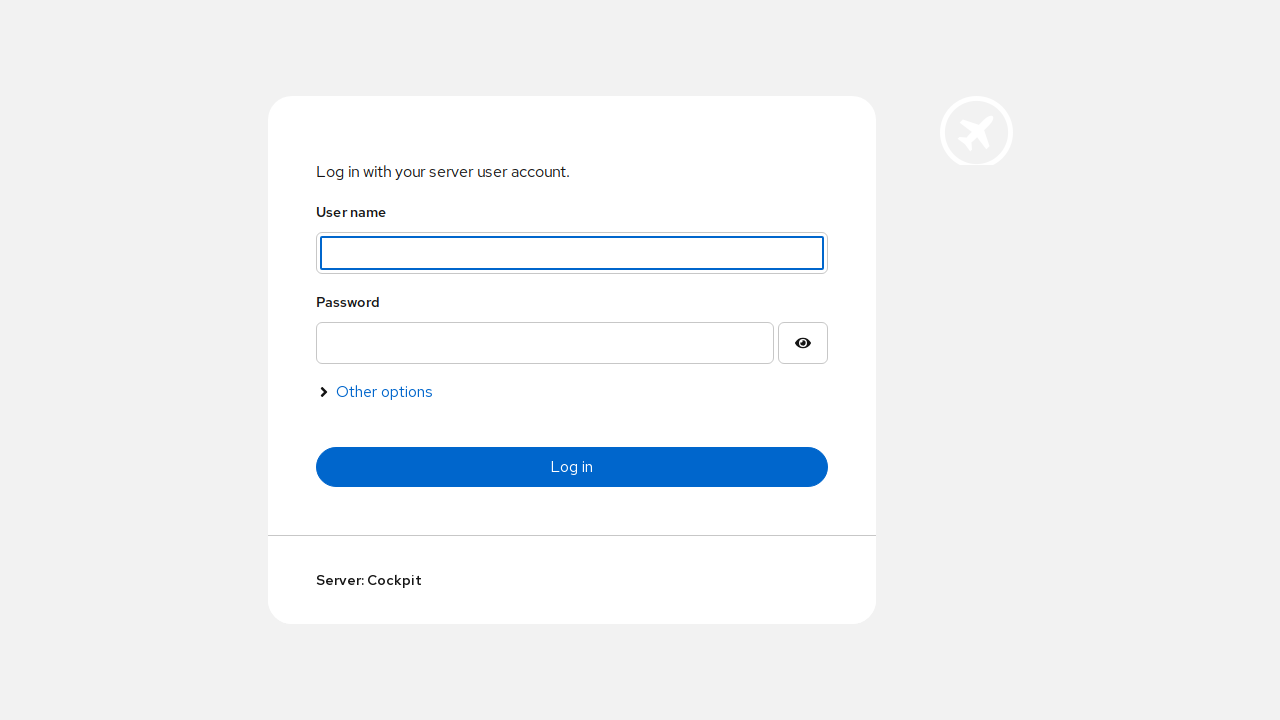
An allowed user reaches Cockpit. Sign in. Pomerium redirects you back and Cockpit's own login screen loads.
-
Log in to the host. Enter your server credentials on Cockpit's screen to reach the dashboard. Pomerium gates the route; Cockpit still authenticates you to the host itself, so signing in through Pomerium does not sign you into Cockpit.
-
A disallowed user is blocked. Sign in as a user your policy excludes and open
https://cockpit.yourdomain.com. Pomerium denies access, so you never reach Cockpit's login screen.
Common failure modes
- Cockpit shows "Cannot connect" or the page never finishes loading. The WebSocket upgrade was blocked. Make sure the route has
allow_websockets: trueand that yourcockpit.confOriginslists the exact public URL (including thewss://form). - "Received invalid origin" in Cockpit logs. The
HostorOriginCockpit saw didn't matchOrigins. Confirm the route usespreserve_host_header: trueand that the hostname inOriginsmatches your route exactly. - Cockpit redirects to HTTPS in a loop. Cockpit thinks the request was plain HTTP. Set
ProtocolHeader = X-Forwarded-Protoincockpit.confso it trusts Pomerium's scheme header, and keep Cockpit itself in--no-tlsmode.
Security considerations
- Only Pomerium should reach
cockpit:9090. Keep Cockpit off published host ports and on the internal Docker network, or bind it to localhost on a bare-metal host. If the port is reachable directly, anyone on the network gets Cockpit's host login screen and bypasses your Pomerium policy entirely. - Pomerium gates who can reach Cockpit, but it does not log anyone into the server. Cockpit still enforces host credentials (PAM or SSH), so scope the Pomerium route policy to the people who should administer the machine and keep host accounts locked down independently.
- Cockpit's origin check is a defense against cross-site WebSocket abuse, not a substitute for the proxy. Keep
Originstight to the real public URL rather than widening it to make a misconfigured route work.