Secure Open WebUI with Pomerium
What this guide does
Open WebUI is a self-hosted web interface for talking to local or remote large language models (LLMs). This guide puts it behind Pomerium so that every request is authenticated against your identity provider before it reaches the model, and so that Open WebUI knows who the user is without running its own login.
Pomerium forwards the authenticated user's email to Open WebUI in a trusted header (X-Pomerium-Claim-Email). With trusted-header SSO enabled, Open WebUI provisions and signs in that account automatically, so the only credential prompt your users ever see is your corporate identity provider (IdP).
When to use this guide
Use this guide when you host Open WebUI yourself and want one access control plane in front of it: SSO, per-user or per-group policy, and audit logging, without standing up and maintaining a separate login system inside the app. It applies whether your model backend is a local Ollama instance, a remote API, or anything Open WebUI supports; Pomerium sits in front of the UI regardless of the backend.
If you only need to gate access and do not care about Open WebUI recognizing the user, you can skip the trusted-header settings and treat this as a plain HTTP app behind Pomerium.
Prerequisites
- A completed Pomerium quickstart (Zero or Core).
- Docker and Docker Compose.
- A domain you control for the route, for example
llm.yourdomain.com.
Configure Pomerium
- Pomerium Zero
- Pomerium Core
In the Zero Console, create a policy and a route.
-
Under Policies, create a policy that allows the users who should reach the LLM, for example an allow rule matching your email domain.
-
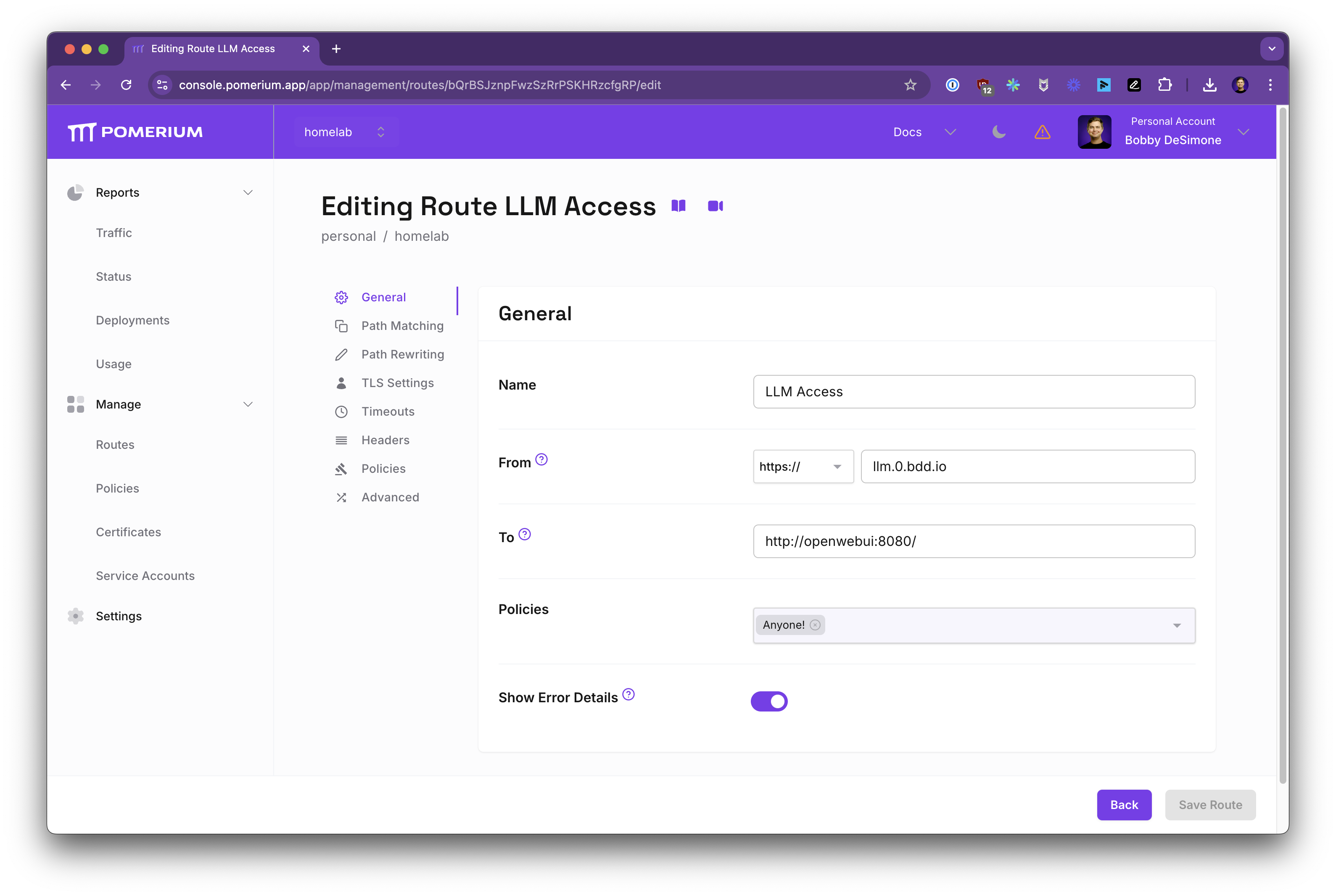
Under Routes, create a route:
- From:
https://llm.yourdomain.com - To:
http://open-webui:8080 - Policy: the policy from step 1.
- From:
-
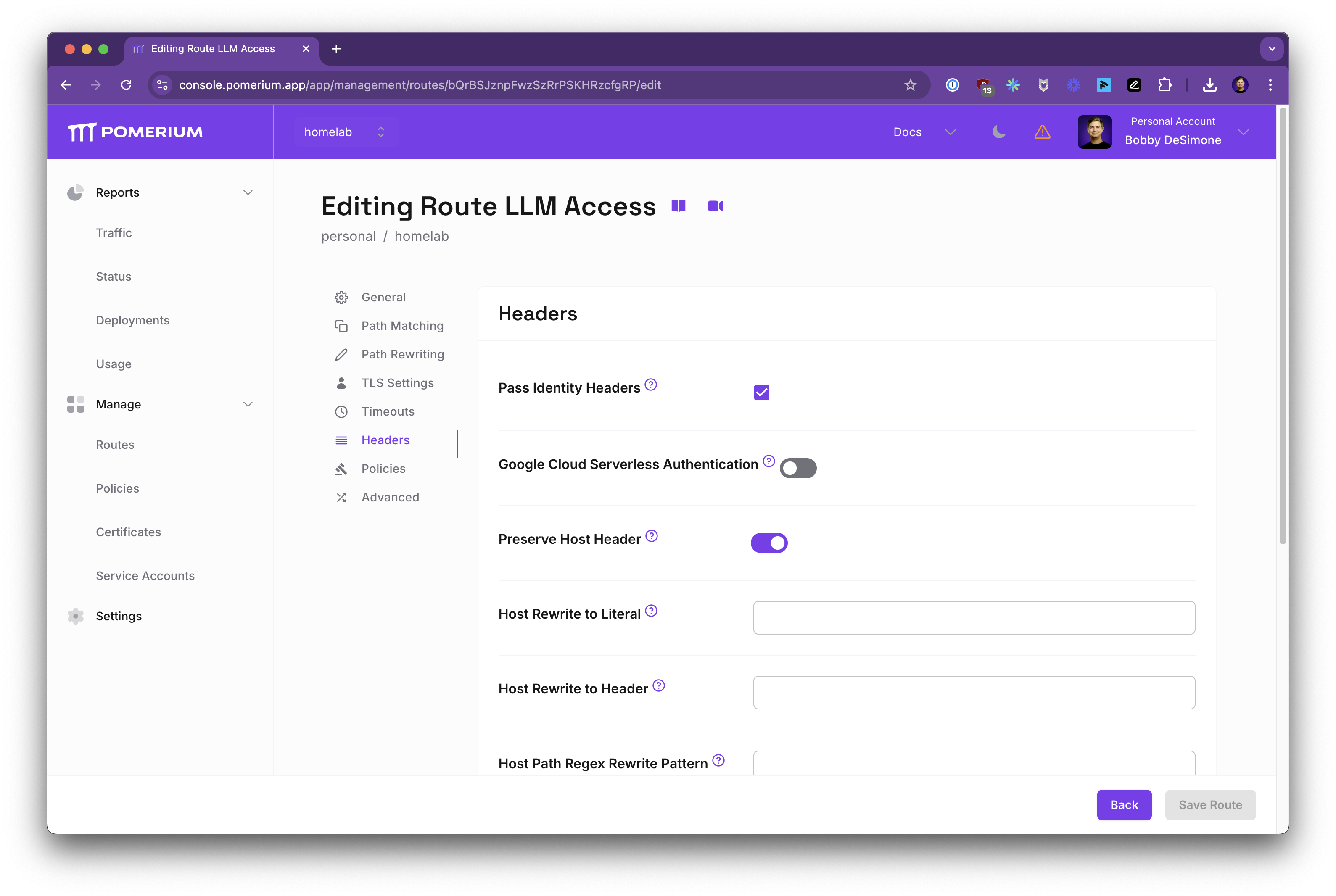
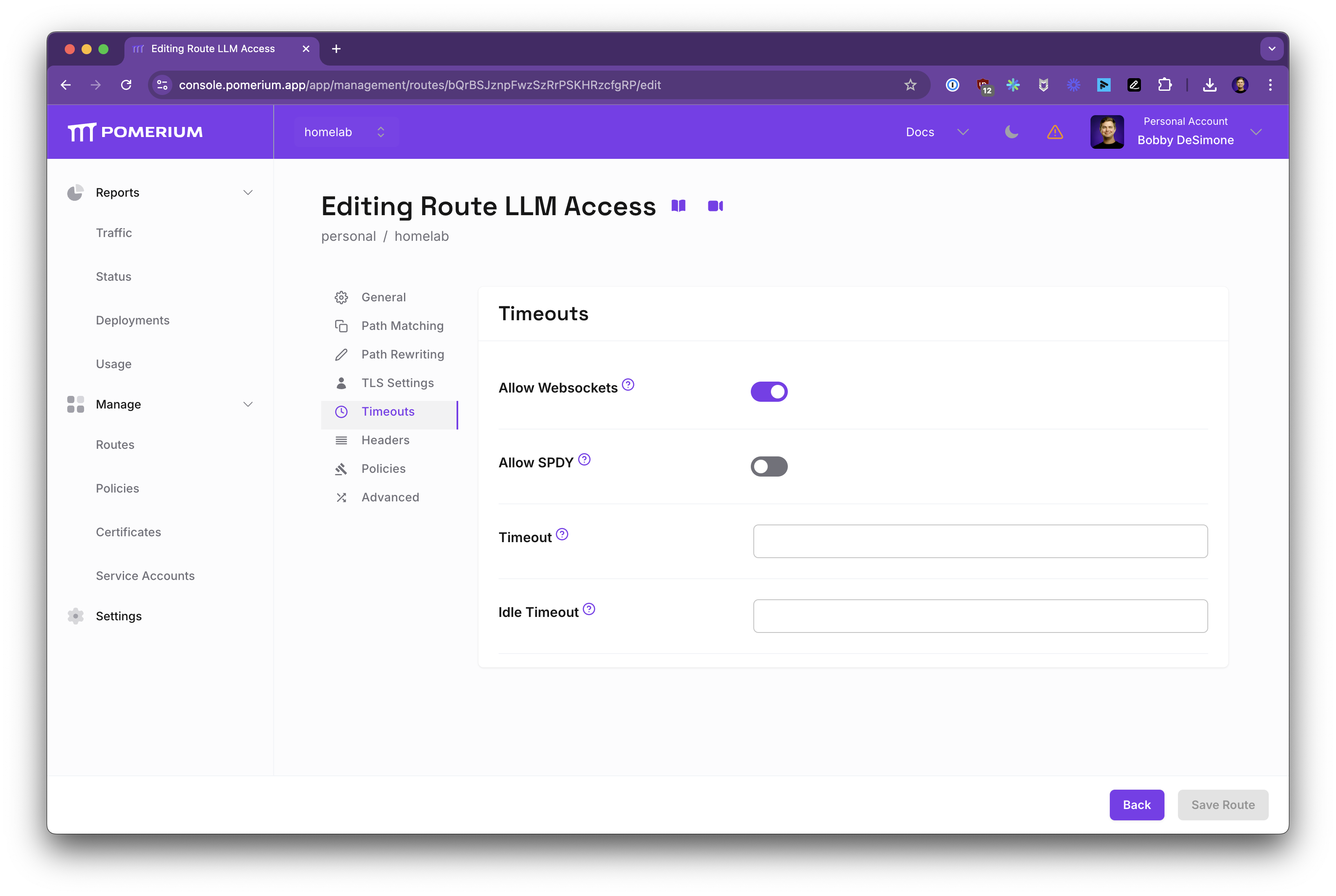
On the route, enable Pass Identity Headers (Headers tab) so Pomerium forwards identity to Open WebUI, and enable Allow WebSockets (Timeouts tab) so streamed responses work.
-
Under Settings, configure JWT Claim Headers to emit the
emailclaim asX-Pomerium-Claim-Email. Pass Identity Headers alone forwards only the signed assertion; theX-Pomerium-Claim-Emailheader Open WebUI reads comes from this mapping.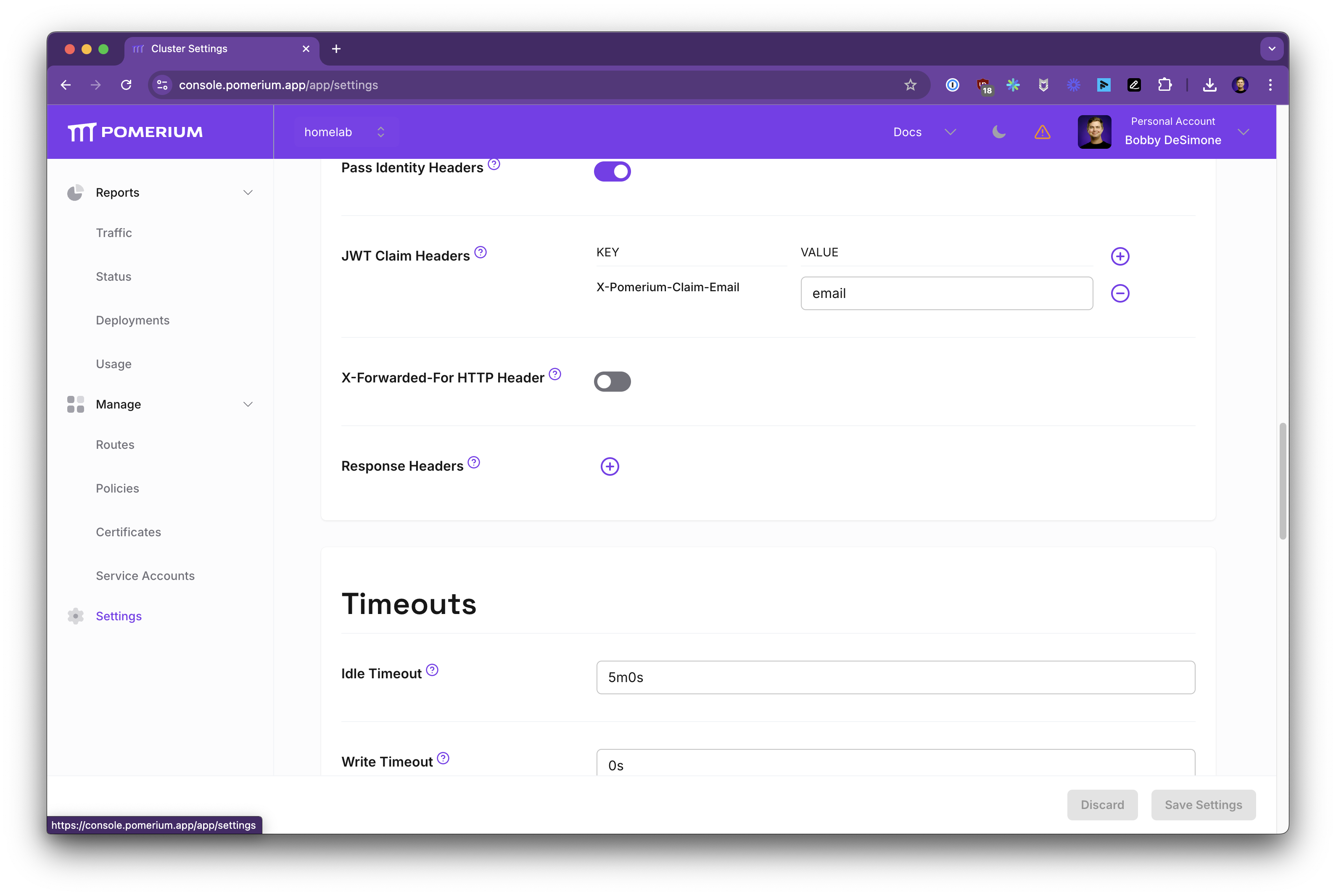
With Pomerium Core you supply a config.yaml. jwt_claims_headers emits the user's email as X-Pomerium-Claim-Email, the route's pass_identity_headers forwards it to Open WebUI, and allow_websockets keeps streamed responses working. Note that pass_identity_headers on its own only forwards the signed assertion; the X-Pomerium-Claim-Email header comes from jwt_claims_headers, so both are required.
# Pomerium Core configuration for Open WebUI. Uses the hosted authenticate service,
# so you don't run your own identity provider. To self-host the IdP, see the Keycloak
# guide: https://www.pomerium.com/docs/integrations/user-identity/oidc
authenticate_service_url: https://authenticate.pomerium.app

# Obtain TLS certificates automatically from Let's Encrypt.
autocert: true

# Emit the user's claims as X-Pomerium-Claim-* headers. pass_identity_headers alone
# only forwards the signed assertion; Open WebUI's trusted-header SSO needs these
# explicit claim headers.
jwt_claims_headers:
  X-Pomerium-Claim-Email: email

routes:
  - from: https://llm.yourdomain.com
    to: http://open-webui:8080
    # Forward the identity headers (including X-Pomerium-Claim-Email) to Open WebUI.
    pass_identity_headers: true
    # Open WebUI streams responses over WebSockets.
    allow_websockets: true
    policy:
      - allow:
          or:
            - email:
                is: you@example.com
autocert: true provisions TLS from Let's Encrypt for the route host. Replace llm.yourdomain.com with your domain and the email allow rule with the users or groups that should have access. This config uses the hosted authenticate service; to run your own identity provider instead, see the Keycloak fallback.
To self-host the identity provider rather than use the hosted authenticate service, follow the OIDC / Keycloak integration.
Configure Open WebUI
Open WebUI reads the trusted email header through one environment variable:
WEBUI_AUTH_TRUSTED_EMAIL_HEADER=X-Pomerium-Claim-Emailtells Open WebUI to trust the email Pomerium forwards, provision the account on first sight, and sign the user in without its own password prompt.WEBUI_URLshould match your external route so generated links are correct.
The first user Open WebUI provisions becomes an admin; everyone provisioned after that lands in a pending role and sees a "waiting for activation" screen until an admin approves them. Plan for that, or set DEFAULT_USER_ROLE=user so new trusted-header users are active immediately.
Trusted-header SSO is only safe when the app is unreachable except through Pomerium; see Security considerations.
Run the stack
The compose file runs Pomerium and Open WebUI together. Open WebUI listens on 8080, which Pomerium routes to internally; only Pomerium publishes ports to the host.
services:
  pomerium:
    image: pomerium/pomerium:v0.32.7@sha256:e10d1d267af24f581157f485d9b0bc08469e2428675b696a08e42ceb09b2279c
    volumes:
      - ./config.yaml:/pomerium/config.yaml:ro
      - pomerium-cache:/data
    ports:
      - 443:443
      - 80:80
    # Pomerium is the only service on the default network (where its ports are
    # published) and is also on the internal network so it can reach Open WebUI.
    networks:
      default: {}
      internal: {}
    restart: always

  open-webui:
    image: ghcr.io/open-webui/open-webui:main@sha256:7f1b0a1a50cfbac23da3b16f96bc968fd757b26dc9e54e93813d61768ea9184e
    environment:
      # Trust the email Pomerium forwards and skip Open WebUI's own login screen.
      - WEBUI_AUTH_TRUSTED_EMAIL_HEADER=X-Pomerium-Claim-Email
      - WEBUI_URL=https://llm.yourdomain.com
      # The first provisioned user becomes admin; later users default to "pending" and
      # must be approved. Uncomment to make new SSO users active immediately instead.
      # - DEFAULT_USER_ROLE=user
    volumes:
      - open-webui-data:/app/backend/data
    # Open WebUI is ONLY on the internal network, so nothing but Pomerium can reach it
    # and the trusted email header cannot be forged by going around Pomerium.
    networks:
      internal: {}
    restart: always

volumes:
  pomerium-cache:
  open-webui-data:

networks:
  default: {}
  # internal: true has no route to the host or outside world; only services attached
  # to it (Pomerium and Open WebUI) can talk on it.
  internal:
    internal: true
docker compose up -d
The Open WebUI image is large and its first boot runs a one-time database migration, so give the container a minute or two to become ready the first time you start it.
The compose file pins both images by digest so the example is reproducible. To move to a newer release, update the digests (or switch to a version tag you have tested) and re-pull.
Operations
To stop the stack without losing data:
docker compose down
To tear it down completely, including the pomerium-cache and open-webui-data volumes (this deletes your Open WebUI accounts, chats, and settings):
docker compose down -v
To upgrade, pull the newer images and recreate the containers; your data persists in the named volumes unless you remove them:
docker compose pull
docker compose up -d
Verify the setup
-
Visit
https://llm.yourdomain.comwhile logged out. Pomerium should redirect you to your identity provider rather than show the Open WebUI login. -
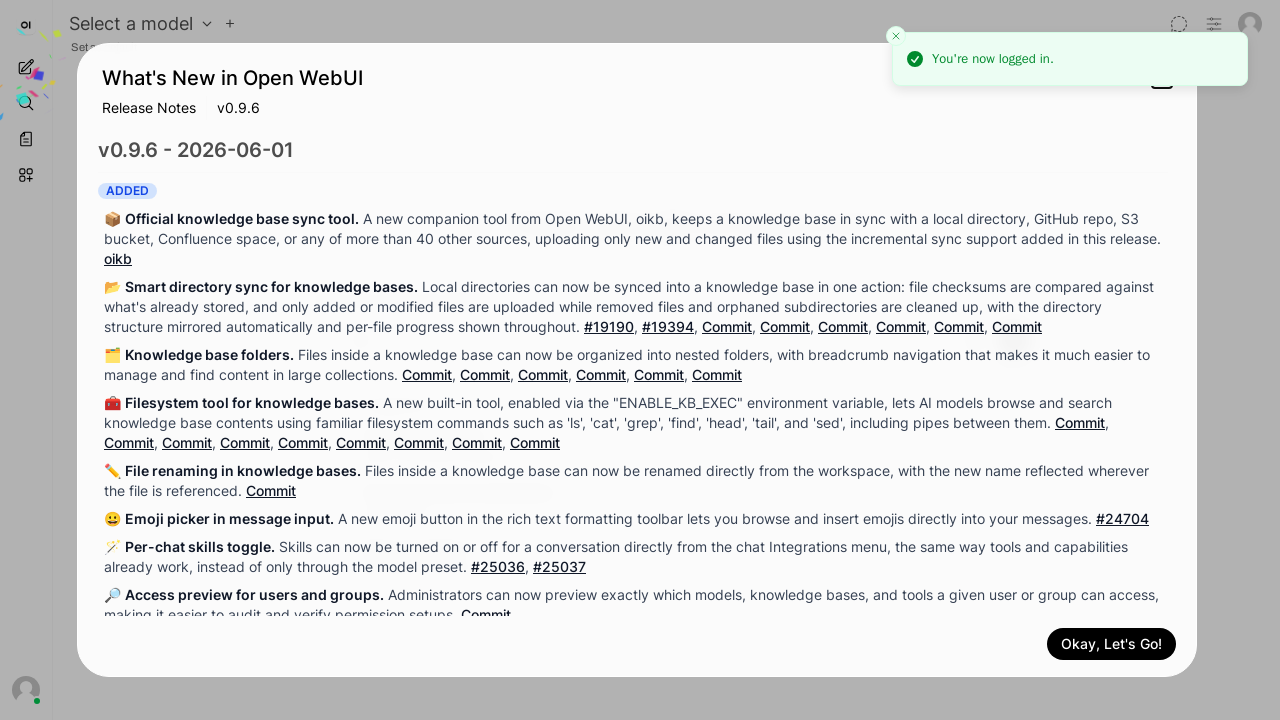
Sign in with an allowed account. After the identity provider redirect you land in Open WebUI already signed in, with no second password prompt.
-
Confirm Open WebUI shows the right identity: the account in the top corner reflects your authenticated email, which Pomerium forwarded as
X-Pomerium-Claim-Email. -
Sign in with a user the policy denies and confirm Pomerium blocks the request before it reaches Open WebUI.
Common failure modes
- Open WebUI shows its own login screen. The trusted-header variable is unset or misspelled, or Pomerium is not emitting the claim header. Confirm
WEBUI_AUTH_TRUSTED_EMAIL_HEADERmatches the header name, thatjwt_claims_headers(Core) or JWT Claim Headers (Zero) mapsemailtoX-Pomerium-Claim-Email, and that the route haspass_identity_headersenabled. - Streamed responses hang or never start. WebSockets are not allowed on the route. Enable Allow WebSockets (Zero) or
allow_websockets: true(Core). - 502 / connection refused from Pomerium. Open WebUI is still booting its first-run migration, or the
toaddress does not match the service name and port (http://open-webui:8080). - Wrong or blank user in Open WebUI. The forwarded header name does not match what Open WebUI expects. Both sides must agree on
X-Pomerium-Claim-Email.
Security considerations
Trusted-header SSO means Open WebUI believes whatever identity arrives in X-Pomerium-Claim-Email. Two properties keep that safe, and both must hold:
- Pomerium owns the header. Pomerium overwrites any inbound
X-Pomerium-*headers with the authenticated user before forwarding upstream, so a client cannot smuggle a forged email through Pomerium to impersonate someone else. The identity Open WebUI sees is always the one Pomerium authenticated. - Pomerium is the only path to the app. That guarantee is worth nothing if a user can reach Open WebUI directly on
8080and set the header themselves. The compose file enforces this: Open WebUI publishes no host ports and sits on aninternalDocker network shared only with Pomerium, so the only route to it is through Pomerium. Reproduce that isolation in production, and make sure no firewall, load balancer, or other route bypasses Pomerium.
Treat any direct path to the upstream as an authentication bypass.
Next steps
- Tighten the policy with group-based rules or Pomerium Policy Language.
- Point Open WebUI at your model backend with
OLLAMA_BASE_URLor an OpenAI-compatible endpoint. - Add more self-hosted tools behind the same Pomerium instance with additional routes.