Secure Jellyfin with Pomerium
What this guide does
Put a self-hosted Jellyfin media server behind Pomerium to gate its web client with SSO and route policy: you sign in once with your organization identity, group membership decides who can reach the server at all, and every access decision is logged at the proxy. Jellyfin keeps its own login and user accounts on top.
When to use this guide
Use it when you run self-hosted Jellyfin and want only people from your organization to reach the web interface, without exposing Jellyfin directly to the internet.
This setup protects browser access only. Jellyfin's native TV, mobile, and Chromecast apps authenticate straight to Jellyfin's API with Jellyfin access tokens and never perform a browser SSO redirect, so if the only route to Jellyfin requires Pomerium SSO, those apps cannot connect. If you rely on them, keep native-app access on a private network or a virtual private network (VPN), or serve the apps' endpoint on a separate public access route. A public-access route is not identity-protected, so Jellyfin's own token authentication is then the only control on it. A TCP route can also carry a client that runs Pomerium CLI or Pomerium Desktop, such as a laptop player, but TVs and Chromecast can't run the tunnel.
Prerequisites
- Docker and Docker Compose
- For the Pomerium Zero path: a Pomerium Zero account with its Pomerium instance running locally via the Quickstart Compose file; the route uses the starter domain that comes with it
- For the Pomerium Core path: a domain you control (this guide uses
jellyfin.yourdomain.com), with DNS pointed at the host running Pomerium and ports 80 and 443 reachable soautocertcan provision certificates; the Compose file below runs Pomerium itself
This guide uses the hosted authenticate service so you don't have to run your own identity provider (IdP). To run your own instead, follow Keycloak + Pomerium and swap the authenticate_service_url / idp_* settings into the config below.
Configure Pomerium
- Pomerium Zero
- Pomerium Core
In the Zero Console:
- Create a Route. In From, enter
https://jellyfin.<your-starter-domain>; in To, enterhttp://jellyfin:8096. - On the route's settings, enable Allow WebSockets. The Jellyfin web client streams playback and session state over WebSockets; without this the UI loads but never updates.
- Enable Preserve Host Header so Jellyfin's absolute URLs (web client, casting) match the From URL rather than the container name.
- Raise the request Timeout (or set it to 0 for no limit), and set a generous Idle Timeout such as
600s. Direct-play streams and file downloads are long plain HTTP responses, separate from the WebSocket control channel. - Set the policy to scope access to who should reach Jellyfin (for example, Any Authenticated User or a specific group or domain).
Create a config.yaml. It routes jellyfin.yourdomain.com to the Jellyfin container, allows WebSockets for the web client, preserves the host header so Jellyfin's links stay correct, and removes the total request-time cap for long playback and downloads.
# Pomerium Core configuration for Jellyfin. Uses the hosted authenticate service, so
# you don't run your own identity provider. To self-host the IdP, see the Keycloak
# guide: https://www.pomerium.com/docs/integrations/user-identity/oidc
authenticate_service_url: https://authenticate.pomerium.app

# Obtain TLS certificates automatically from Let's Encrypt.
autocert: true

routes:
  - from: https://jellyfin.yourdomain.com
    to: http://jellyfin:8096
    # The Jellyfin web client streams events over WebSockets; without this the UI
    # loads but playback state and remote control never update.
    allow_websockets: true
    # Forward the original Host so Jellyfin's absolute URLs (web client, casting)
    # match the public name instead of the container name.
    preserve_host_header: true
    # Direct-play streams and downloads are long plain HTTP responses, separate
    # from the web client's WebSocket control channel.
    timeout: 0s
    idle_timeout: 600s
    policy:
      - allow:
          or:
            - email:
                is: you@example.com
Replace jellyfin.yourdomain.com with your domain and you@example.com with the email (or switch to a group or domain match) that should be allowed through. Restart Pomerium after saving.
Configure Jellyfin
Two settings in the Compose file keep Jellyfin's URLs correct behind the proxy:
JELLYFIN_PublishedServerUrl: https://jellyfin.yourdomain.com— Jellyfin builds absolute URLs (the web client, casting, Digital Living Network Alliance (DLNA) discovery) from this value, so it must match the From URL chosen above.- Leave the network base URL empty. This guide serves Jellyfin at the root of the From URL, so there is no base-path prefix to set.
The Compose file runs Pomerium Core and Jellyfin together. For Zero, drop the pomerium service and use the compose.yaml from the Quickstart with your POMERIUM_ZERO_TOKEN, keeping the jellyfin service; put jellyfin on the same Docker network as the Quickstart's pomerium service (the Quickstart names it main) so Pomerium can resolve jellyfin by name.
services:
  pomerium:
    image: pomerium/pomerium:v0.32.7@sha256:e10d1d267af24f581157f485d9b0bc08469e2428675b696a08e42ceb09b2279c
    volumes:
      - ./config.yaml:/pomerium/config.yaml:ro
      - pomerium-cache:/data
    ports:
      - 443:443
      - 80:80
    restart: always

  jellyfin:
    image: jellyfin/jellyfin:10.10.7@sha256:7ae36aab93ef9b6aaff02b37f8bb23df84bb2d7a3f6054ec8fc466072a648ce2
    environment:
      # Jellyfin builds absolute URLs (DLNA, casting, the web client) from this
      # value, so it must be the public route, not the container name.
      JELLYFIN_PublishedServerUrl: https://jellyfin.yourdomain.com
    volumes:
      - jellyfin-config:/config
      - jellyfin-cache:/cache
    restart: always

volumes:
  pomerium-cache:
  jellyfin-config:
  jellyfin-cache:
Run the stack
docker compose up -d
Jellyfin initializes its configuration and database on first boot; watch docker compose ps until the container is Up, then follow docker compose logs -f jellyfin until the web server is listening if the page isn't ready yet.
Once it's up, finish Jellyfin's setup wizard and create your Jellyfin accounts. In Dashboard > Networking, keep Enable remote connections on so Jellyfin accepts the proxied requests, and add the address the proxied requests arrive from (the Pomerium container's address on the shared Docker network) to the Known proxies list so Jellyfin trusts the forwarded headers rather than treating every request as remote. If you're unsure of the address, Jellyfin logs the source of each request; use that value. Jellyfin's reverse proxy docs cover Known proxies in detail.
When you're done testing, stop the stack:
docker compose down
Add -v only if you mean to delete Jellyfin's config and cache volumes.
Verify the setup
- The route requires authentication. In a fresh browser, open
https://jellyfin.yourdomain.com. You should be redirected to sign in through Pomerium, not straight into Jellyfin. - An allowed user reaches Jellyfin. Sign in with a user your policy allows. Pomerium redirects you back and Jellyfin's web client loads.
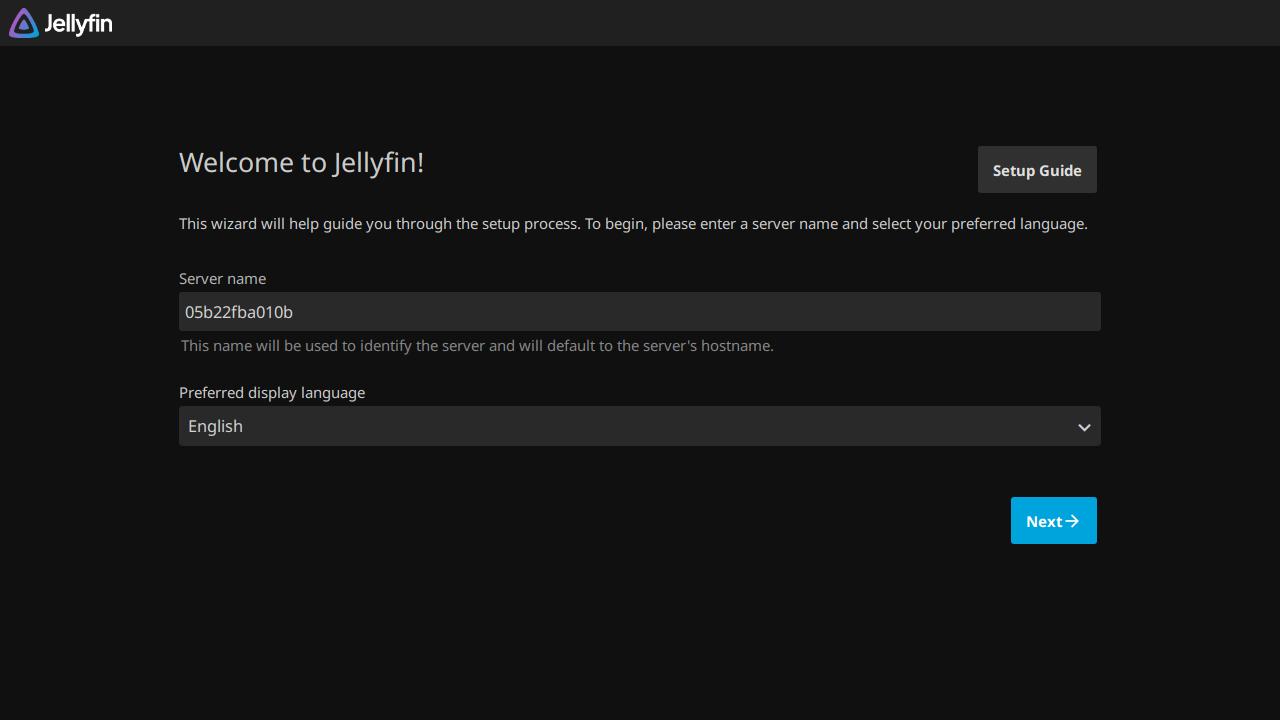
- The upstream is live. With your session, open
https://jellyfin.yourdomain.com/System/Info/Public. Jellyfin answers200with a small JSON document (it includes aVersion); that endpoint needs no Jellyfin login, so a JSON response confirms the proxy reached a running Jellyfin rather than an error page. - The session is yours. Open
https://jellyfin.yourdomain.com/.pomeriumto confirm your identity and the group claims Pomerium evaluated.
What Pomerium protects — and what it doesn't
Pomerium authenticates and authorizes browser requests on the route. Jellyfin's other client channels never complete a browser sign-in, so wherever they connect, Jellyfin's own authentication is the control:
| Access channel | What gates it | Credential the client presents |
|---|---|---|
| Jellyfin web client in a browser | Pomerium route policy, then Jellyfin's own login | Pomerium SSO session, then a Jellyfin login |
| Native TV, mobile, and Chromecast apps | Jellyfin's authentication only (these apps can't complete a browser SSO redirect) | A Jellyfin access token |
| HTTP API and DLNA | Jellyfin's API authentication for HTTP clients; DLNA discovery is local-network multicast and never crosses the proxy | A Jellyfin API key or access token; DLNA presents none |
Common failure modes
- The web client loads but playback state never updates. The route is missing
allow_websockets. The Jellyfin web client streams session and playback events over WebSockets; enable WebSockets on the route. - Direct-play video or a large download stops after about 30 seconds. The route is still using the default request timeout. Raise the route
timeout(or set it to0son Pomerium Core) and keep a generousidle_timeout; WebSockets do not cover direct-play or download responses. - Redirects or absolute links point at the container name or the wrong host. Jellyfin's
JELLYFIN_PublishedServerUrldoesn't match the route's From URL, orpreserve_host_headerisn't set. Make both agree onjellyfin.yourdomain.com. - Jellyfin shows every client as a remote connection, or rejects the proxied request. Jellyfin isn't trusting the Pomerium hop. In Dashboard > Networking, keep remote connections enabled and add Pomerium to Known proxies so Jellyfin trusts the forwarded headers.
- Native TV, Chromecast, or mobile apps stop connecting. Those apps authenticate straight to Jellyfin's API and never perform the browser redirect, so a route that requires SSO blocks them. See When to use this guide for the alternatives.
Security considerations
- Don't expose Jellyfin directly. Only Pomerium should reach
jellyfin:8096. Keep Jellyfin off published host ports and on a Docker network shared only with Pomerium so the route policy can't be bypassed by connecting to the container. - Jellyfin has no native single sign-on and doesn't trust a reverse-proxy identity header. A community SSO plugin can add OIDC for the web client only, so for most setups the front door in this guide is the practical ceiling.
- Scope the route policy. Limit the route to the users or groups who should reach the media server at all, rather than allowing every authenticated user. Jellyfin's per-user library permissions still apply on top.