Secure Synology NAS with Pomerium
What this guide does
You'll run Pomerium in Docker on a Synology network attached storage (NAS) device so the self-hosted apps on that NAS sit behind single sign-on and per-route authorization. Pomerium authenticates every request before it reaches an app, which lets you expose services to the internet by subdomain (for example httpbin.int.nas.example) without a virtual private network (VPN) and without relying on each app's own login.
Pomerium is lightweight: a single instance typically uses well under 50 MB of memory and very little CPU, so it runs comfortably alongside your other containers on the NAS.
When to use this guide
Use it when you have a Docker-capable Synology NAS and want one authenticated front door for its web apps. Synology is its own deployment environment: DiskStation Manager (DSM), Synology's operating system, terminates TLS with its built-in nginx and forwards traffic to Pomerium, and you control internet exposure with a port-forward on your router. That hardware and router setup is specific to the NAS, so this guide is written as a single Synology path rather than the usual Zero/Core tabs.
Prerequisites
This guide assumes you've completed the Quickstart, so you already have a Pomerium Zero account and a cluster token, and Pomerium signs users in through the hosted authenticate service.
You also need:
- A working Pomerium Zero cluster with its cluster token. If you don't have one, follow the Quickstart first.
- A Docker-capable Synology product with DSM.
- A subdomain you control for each app (for example
httpbin.int.nas.example), with DNS pointing at your NAS. - A wildcard TLS certificate covering those subdomains, for DSM to serve on the public port. DSM's built-in Let's Encrypt support does not issue wildcard certificates (those need DNS validation), so generate one separately if you don't already have it.
This guide uses the hosted authenticate service so you don't have to run an identity provider (IdP) yourself. To run your own instead, follow Keycloak + Pomerium.
Configure the router
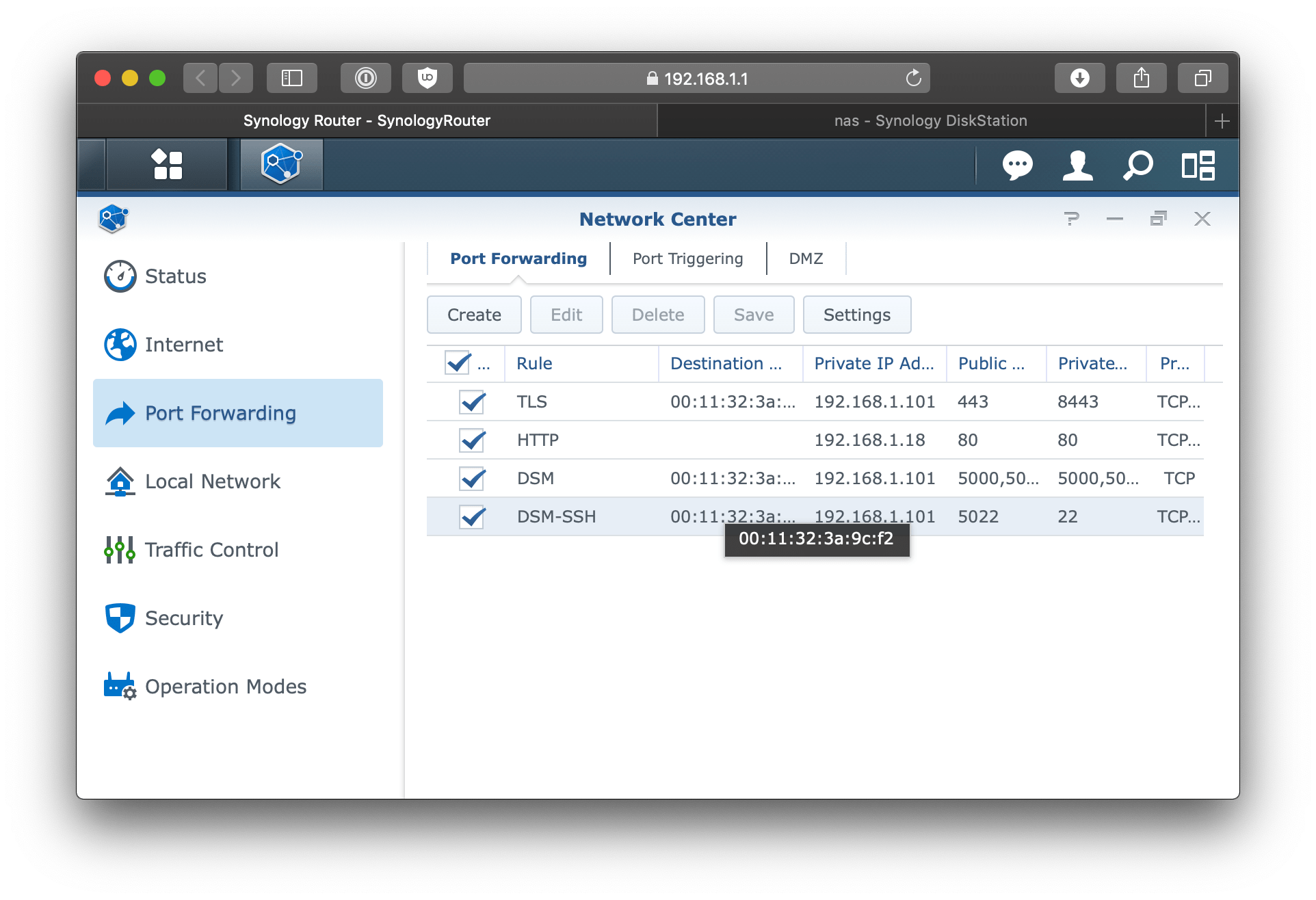
Forward inbound HTTPS traffic from port 443 on your router to a high port on the NAS (this guide uses 8443). DSM will listen on that port and hand requests to Pomerium. The exact screens vary by router model.
Configure DSM
DSM uses nginx under the hood to proxy incoming requests. Configure it to terminate TLS and forward to the port Pomerium will listen on.
Reverse proxy
Go to Control Panel > Application Portal > Reverse Proxy and click Create. Set these rules:
| Field | Value |
|---|---|
| Description | pomerium |
| Source Protocol | HTTPS |
| Source Hostname | * |
| Source Port | 8443 |
| HTTP/2 | Enabled |
| HSTS | Enabled |
| Destination Protocol | HTTP |
| Destination Hostname | localhost |
| Destination Port | 32443 |
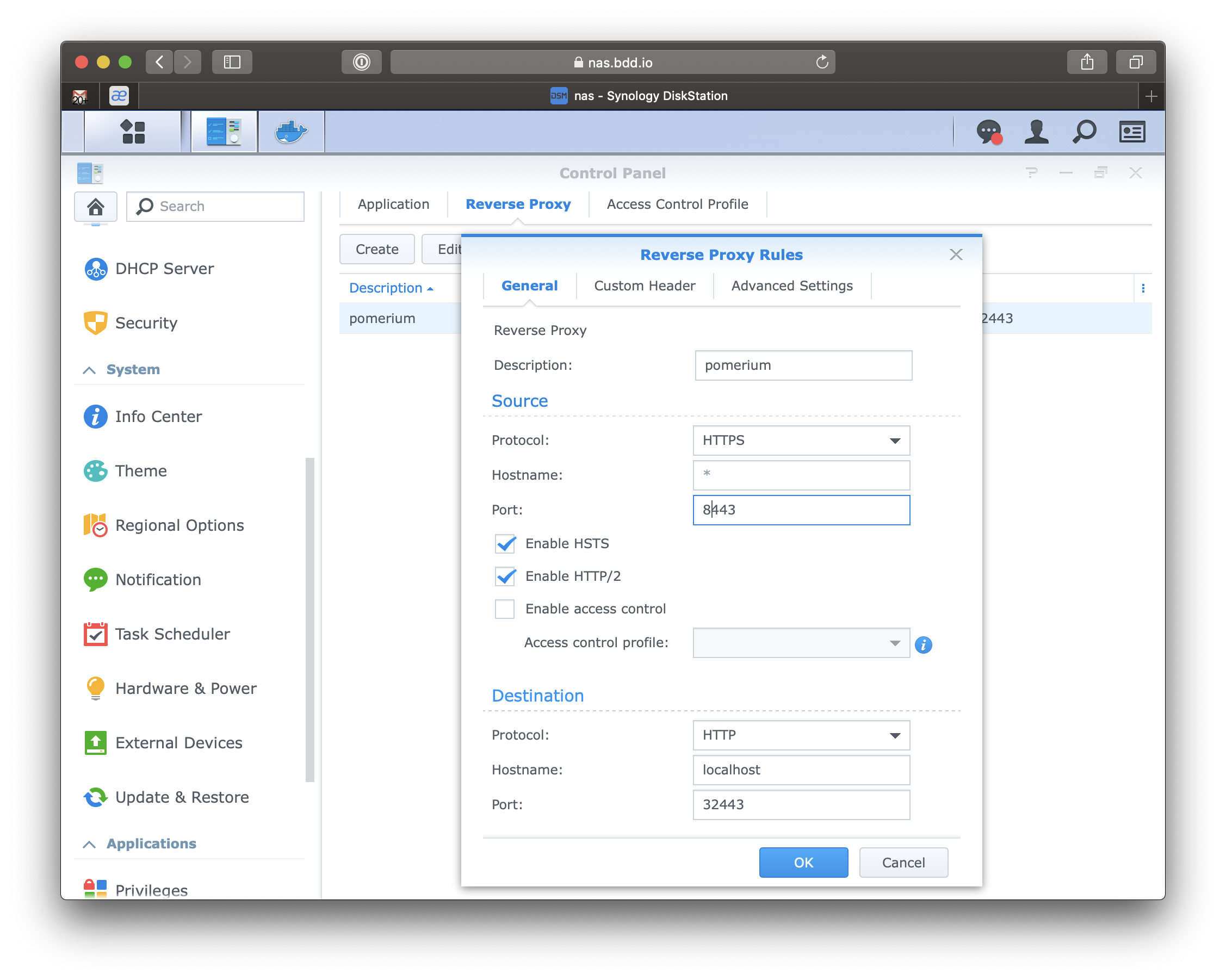
This forwards incoming HTTPS traffic to the Pomerium container, which you'll publish on port 32443 later.
Certificate
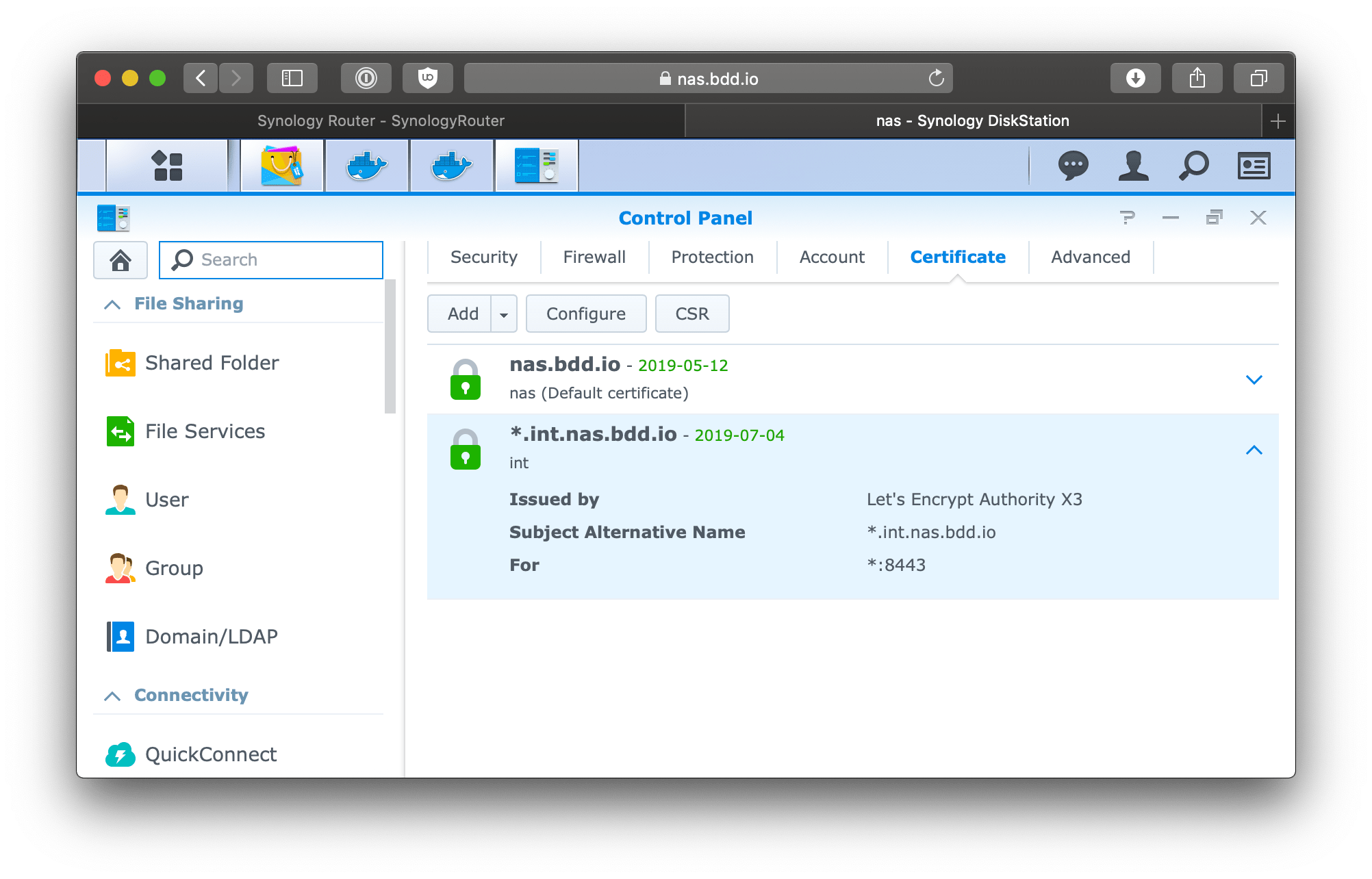
Go to Control Panel > Security > Certificate, then Add > Import certificate and import your wildcard certificate chain. Once it appears in the list, click Configure and assign it to the reverse-proxy service so DSM uses it for traffic on 8443:
| Service | Certificate |
|---|---|
| *:8443 | *.int.nas.example |
Configure the upstream app
Pick any app on your NAS to protect. This guide uses httpbin, a small test server, but it could be any self-hosted app: a wiki, a download client, Plex, and so on.
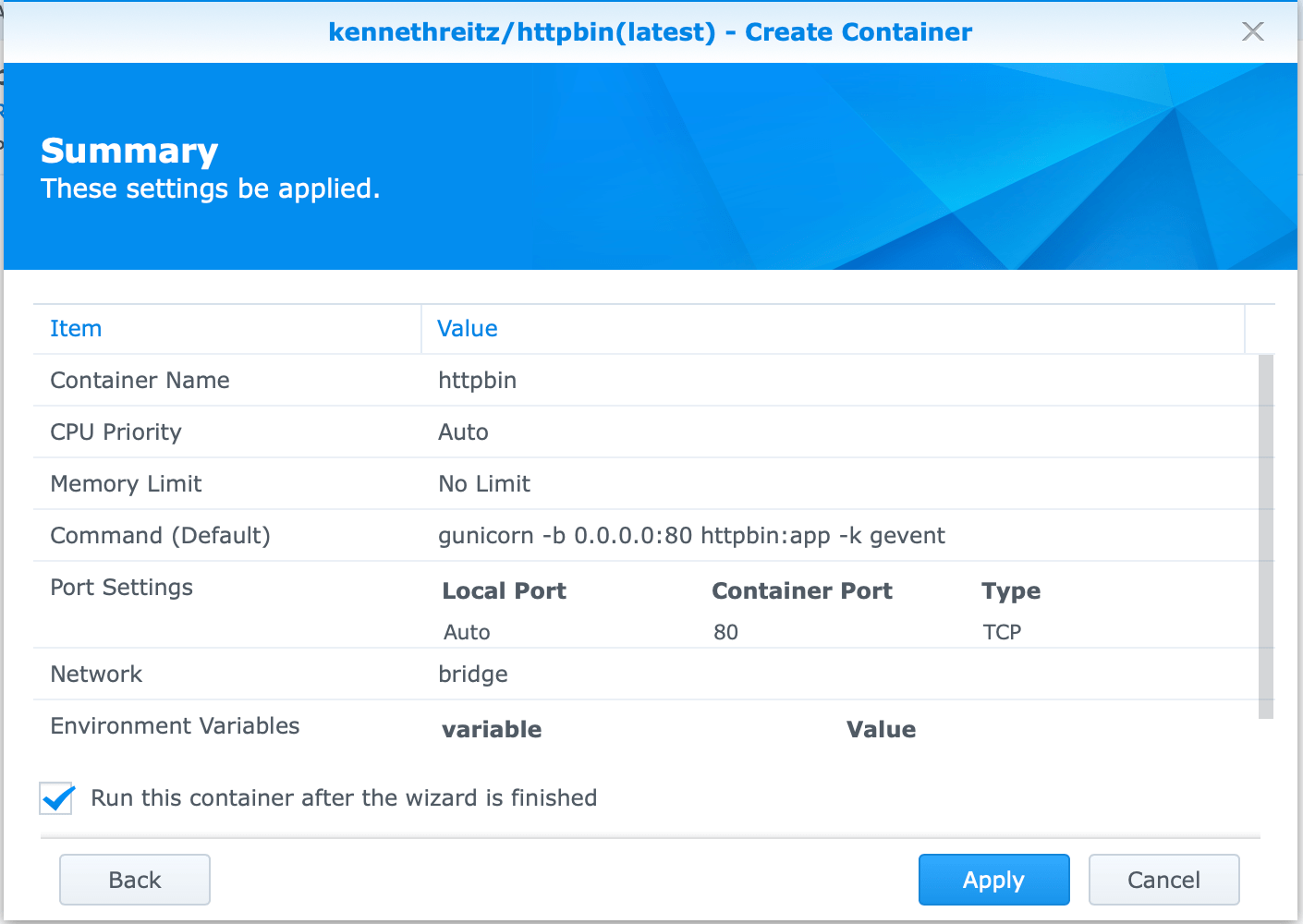
In the DSM Container Manager (formerly Docker), open the Registry, search for kennethreitz/httpbin, and download it. Then go to Image, select it, and launch a container named httpbin, keeping the defaults. This runs a small web server on port 80; the container name becomes the network alias Pomerium routes to.
Add the route in the Zero Console
In the Zero Console:
- Create a Route. In From, enter
https://httpbin.int.nas.example; in To, enterhttp://httpbin. TheTovalue is the container alias you'll link to Pomerium on the NAS in the next step. - Set the policy to the users, groups, or domain that should have access. Scope it deliberately rather than allowing everyone.
- On the Headers tab, enable Pass Identity Headers so the authenticated user's identity reaches the app, then save.
Zero manages the hosted authenticate service, your IdP connection, and the route's signing key, so there is nothing else to wire up for login.
Configure Pomerium
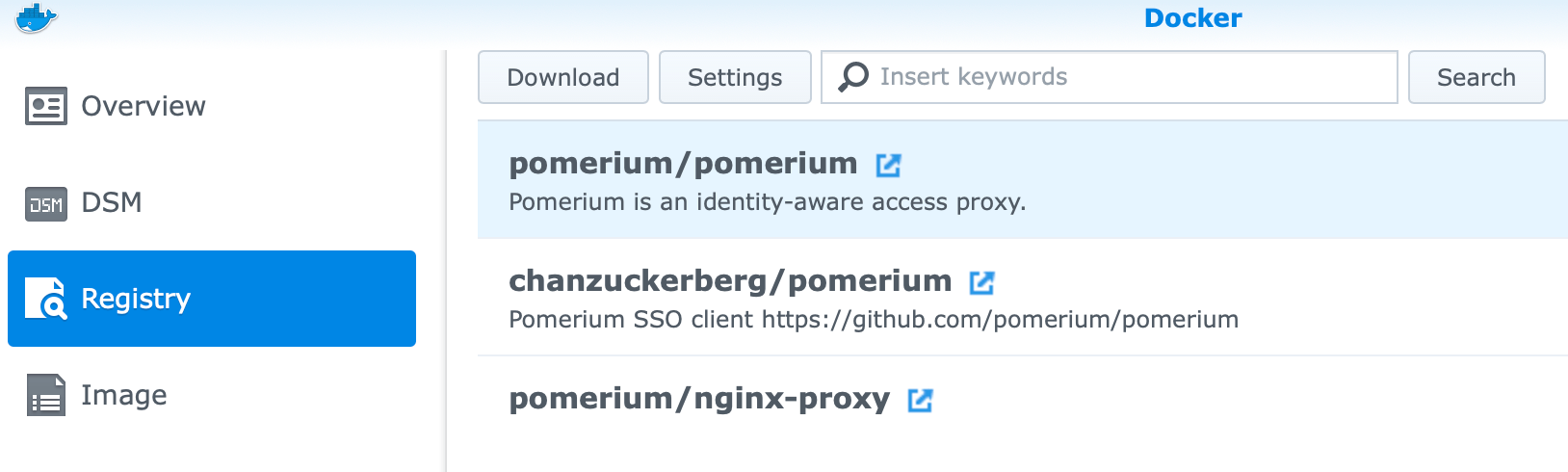
Download the official pomerium/pomerium image from the DSM Registry. In the tag dialog, choose a specific version tag (for example v0.32.7) rather than latest, so a registry update can't change your proxy out from under you.
Launch the container
In Image, select pomerium/pomerium and click Launch, naming the container pomerium. Open Advanced Settings and configure:
-
Port Settings: map local port
32443to container port443(TCP). This is the port DSM's reverse proxy forwards to.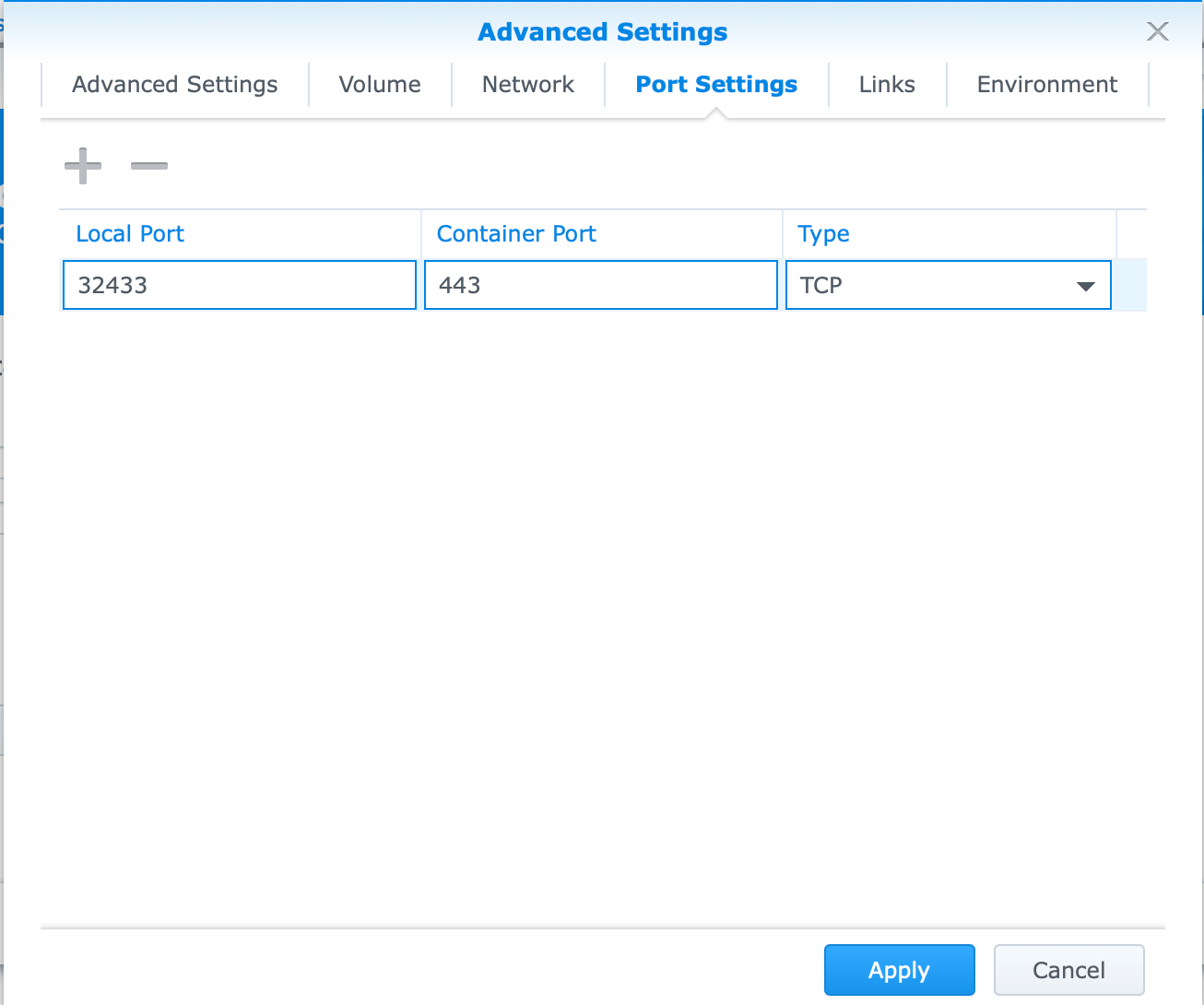
-
Links: add a link to the
httpbincontainer with the aliashttpbin.cautionThe alias must match the host in your route's To value, or Pomerium can't reach the app.

-
Environment: set the variables below.
Variable Value POMERIUM_ZERO_TOKENthe cluster token from your Zero Console INSECURE_SERVERTRUE(DSM has already terminated TLS, so the container listens over HTTP)
The Zero token connects this container to your cluster and pulls down the route and policy you defined in the Console, so you don't manage routes or secrets on the NAS itself.
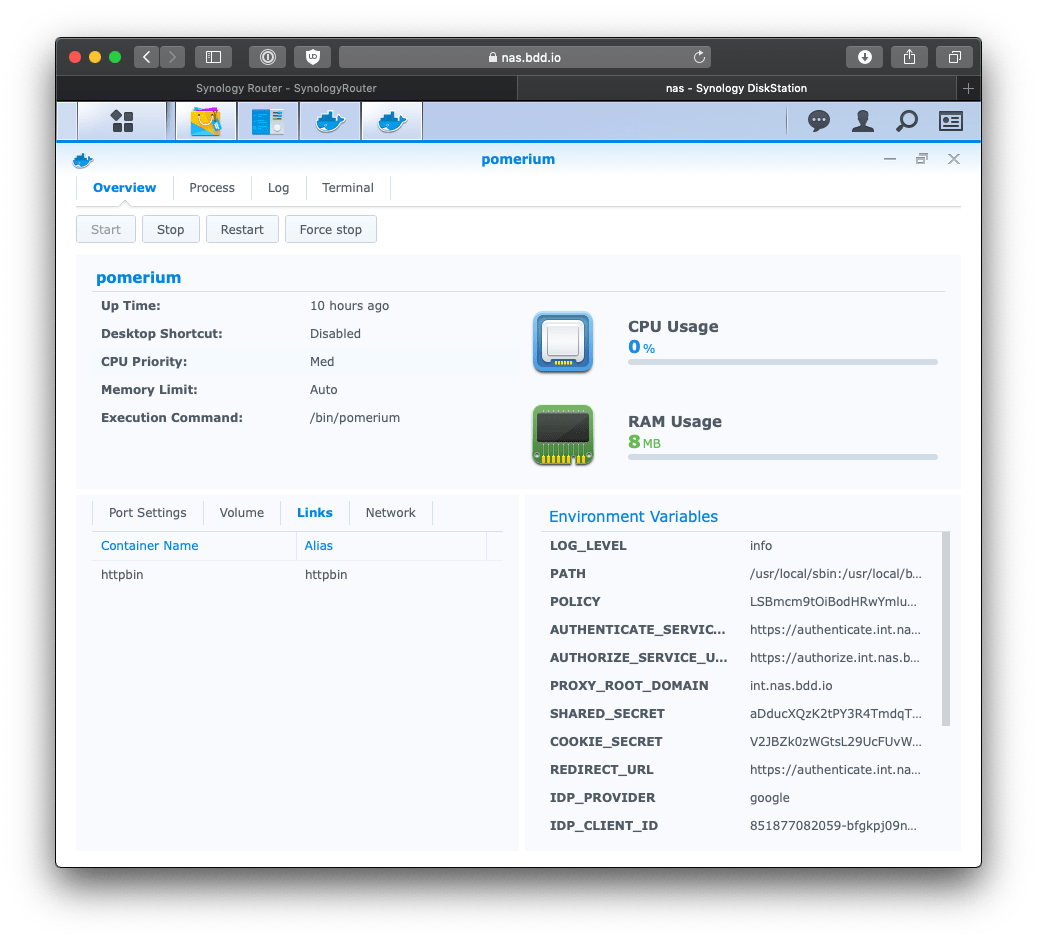
Click Launch. If everything is configured correctly the container starts and stays running; if not, check the container's Log tab.
Verify the setup
-
The route requires authentication. In a fresh browser, open
https://httpbin.int.nas.example. You should be redirected to sign in, not straight into the app.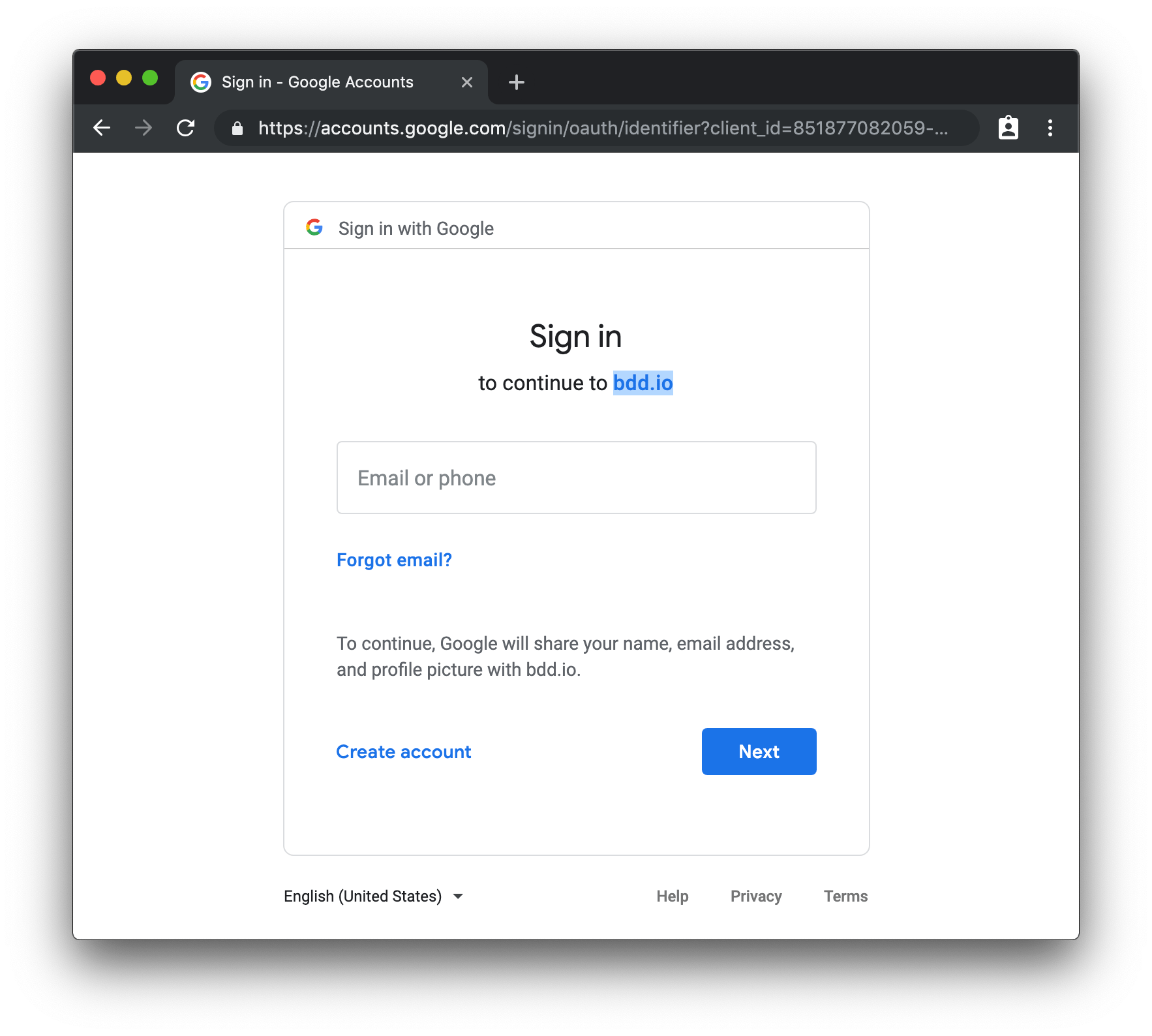
-
An allowed user gets in. Sign in (completing multi-factor authentication if your IdP requires it). Pomerium redirects you back to httpbin.
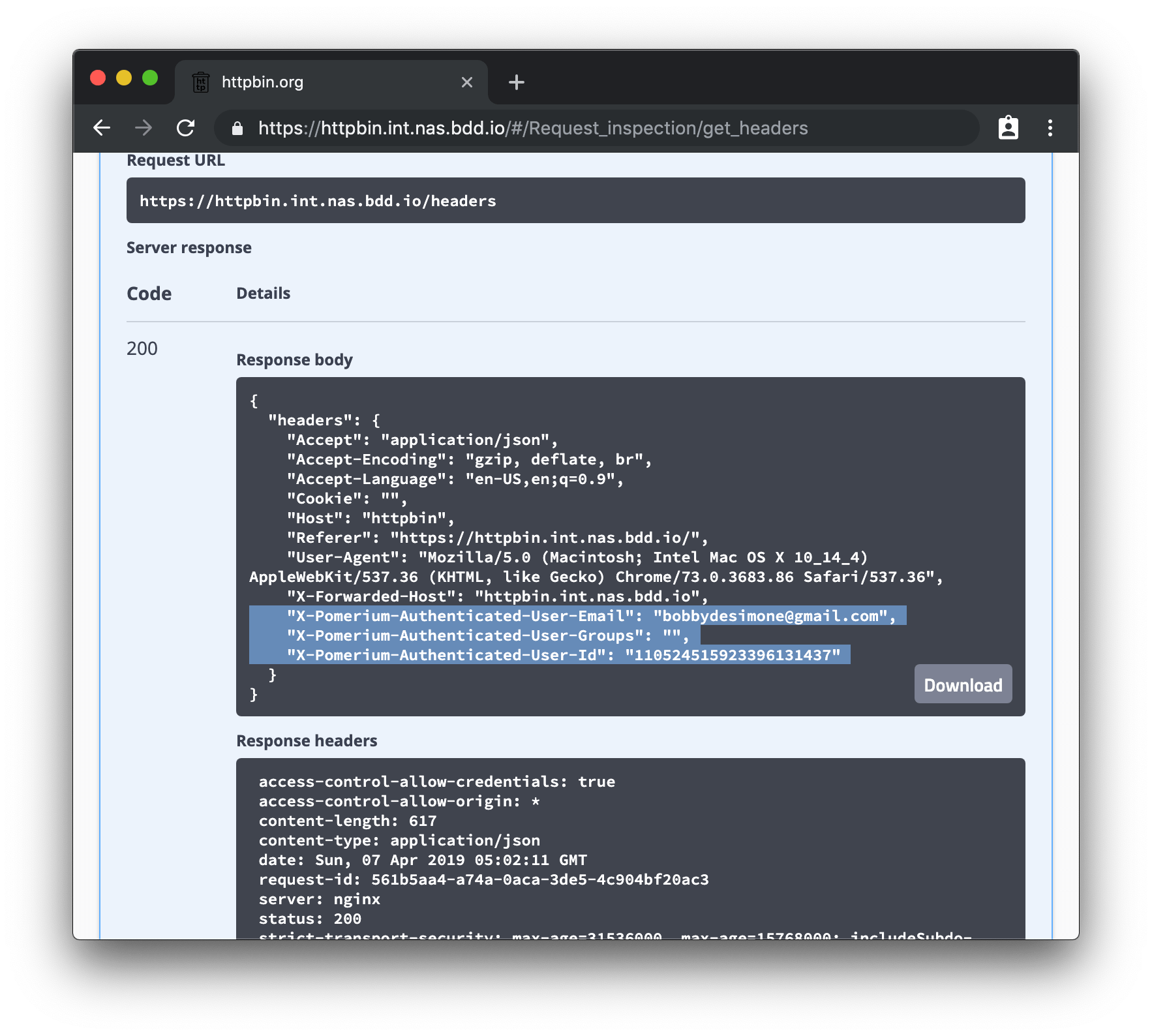
-
Identity is available. Open
https://httpbin.int.nas.example/.pomerium/to see the signed-in user Pomerium is forwarding.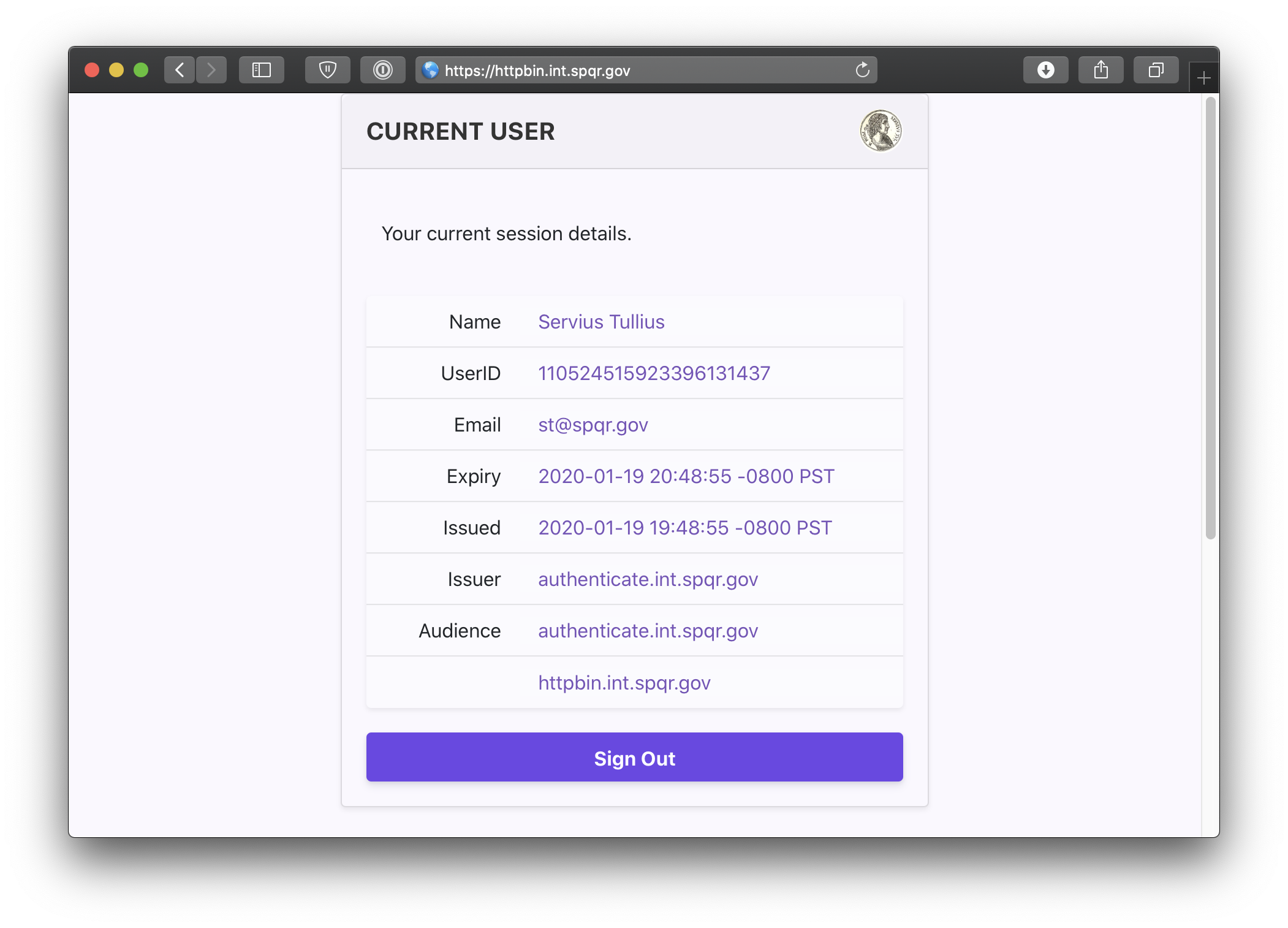
-
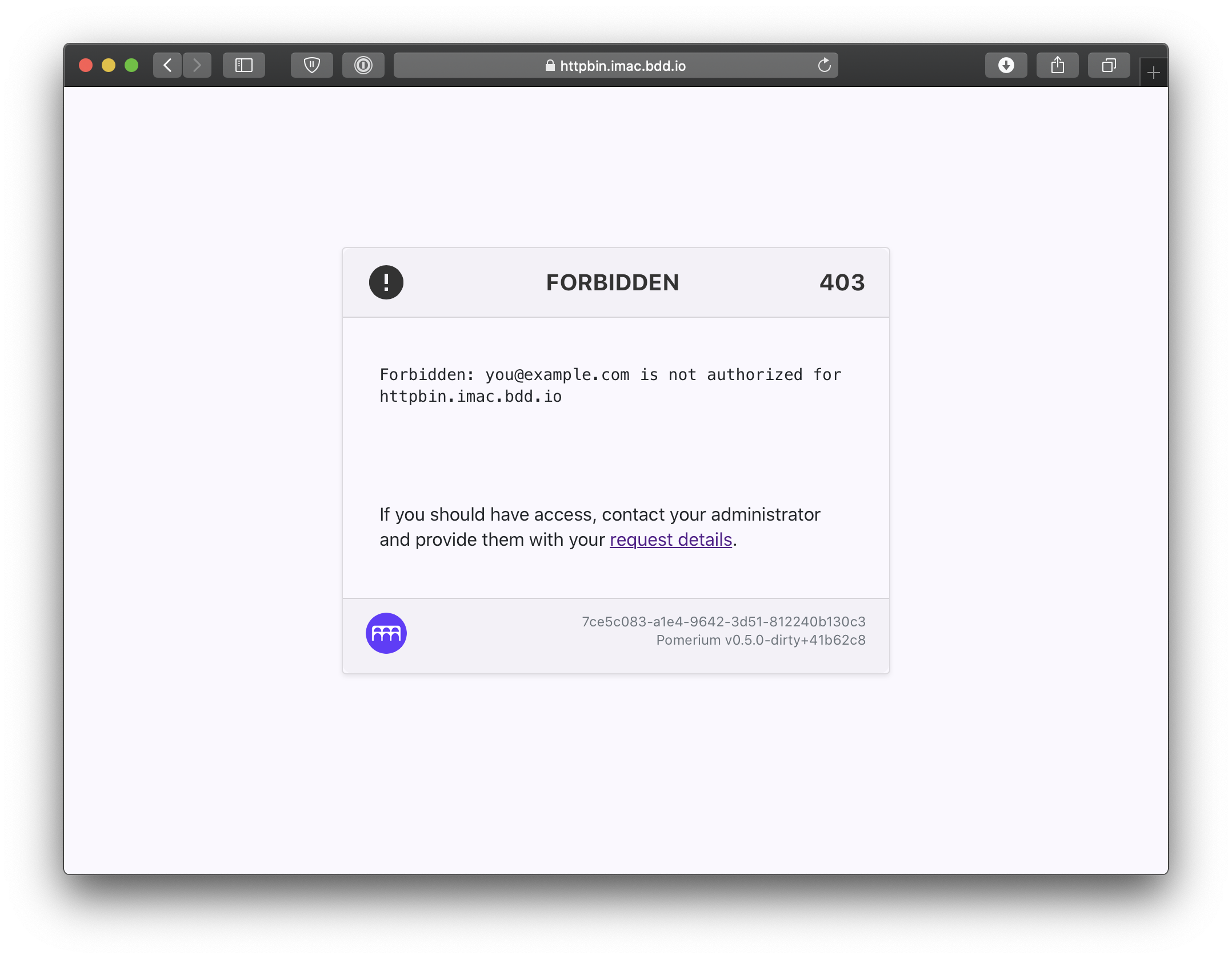
An unauthorized user is denied. Sign in with an account your policy doesn't allow. You should get a
403.
Common failure modes
- Certificate or TLS errors in the browser. DSM must serve your wildcard certificate on
8443. Confirm the certificate is imported and assigned to the*:8443service, and that DNS for the subdomain resolves to your NAS. 502or connection refused after login. Pomerium can't reach the upstream. Check the Links alias matches the To host on the route and that the app container is running.- Redirect loop or sign-in errors. Confirm the route's From host matches the one defined in the Zero Console and is served by this cluster, that it's covered by your wildcard certificate, and that it's reachable through the same DSM reverse proxy.
- Everything returns
404. The requested host doesn't match any route's From. Verify the subdomain and the route in the Zero Console.
Security considerations
- With identity headers enabled, the upstream app trusts the identity Pomerium forwards, so the app must not be reachable except through Pomerium. Keep the upstream container off published NAS ports and only link it to Pomerium on the internal Docker network. The only port exposed to the router should be the one DSM forwards to Pomerium.
- Scope each route's policy to the specific users, groups, or domain that should have access. Widen it deliberately, not by default.
INSECURE_SERVER=TRUEonly disables TLS inside the container because DSM already terminated it. External traffic is still TLS-terminated by DSM, so don't expose the32443container port to the internet.
Operations
- Update the image. Update on your own schedule by pulling a newer
pomerium/pomeriumtag and recreating the container, rather than trackinglatest. - Update a route. Edit the route or policy in the Zero Console; the connected container picks up the change without recreating the container.
- Rotate the token. If the cluster token may be exposed, rotate it in the Zero Console and update the container's
POMERIUM_ZERO_TOKENenvironment variable. - Tear down. Stop and remove the
pomeriumandhttpbincontainers in Container Manager, then delete the DSM reverse-proxy rule and the router port-forward to stop exposing the service.