Secure HedgeDoc with Pomerium
What this guide does
HedgeDoc is a collaborative, web-based Markdown editor for writing notes, diagrams, and documents in real time. This guide puts HedgeDoc behind Pomerium so that Pomerium handles single sign-on and authorization before any request reaches the editor. HedgeDoc keeps its own accounts and sharing model; Pomerium is the front door that decides who is allowed to open it.
When to use this guide
Use it when you run a self-hosted HedgeDoc instance and want one identity-aware front door in front of it instead of exposing it to the open internet. If you only need to reach HedgeDoc over a private network without browser SSO, a plain TCP route is a better fit.
Prerequisites
This guide assumes you've completed the Quickstart, so you already have Pomerium running and signing users in through the hosted authenticate service.
You also need:
- Docker and Docker Compose
- A domain you control for the HedgeDoc route (this guide uses
hedgedoc.yourdomain.com)
This guide uses the hosted authenticate service so you don't have to run your own identity provider (IdP). To run your own instead, follow Keycloak + Pomerium and swap the authenticate_service_url / idp_* settings into the config below.
Configure Pomerium
- Pomerium Zero
- Pomerium Core
In the Zero Console:
- Create a Route. In From, enter
https://hedgedoc.<your-starter-domain>; in To, enterhttp://hedgedoc:3000. - On the route's settings, enable Allow WebSockets. HedgeDoc's collaborative editor keeps a live connection open, and the route has to permit the WebSocket upgrade or the editor will fail to load.
- Set the policy to Any Authenticated User, or scope it to the group or domain that should have access.
Create a config.yaml. It routes hedgedoc.yourdomain.com to the HedgeDoc container, allows the WebSocket upgrade the editor needs, and limits access with a policy.
# Pomerium Core configuration for HedgeDoc. Uses the hosted authenticate service, so
# you don't run your own identity provider. To self-host the IdP, see the Keycloak
# guide: https://www.pomerium.com/docs/integrations/user-identity/oidc
authenticate_service_url: https://authenticate.pomerium.app

# Obtain TLS certificates automatically from Let's Encrypt.
autocert: true

routes:
  - from: https://hedgedoc.yourdomain.com
    to: http://hedgedoc:3000
    # HedgeDoc's collaborative editor keeps a live connection open, so the route
    # has to allow WebSocket upgrades.
    allow_websockets: true
    policy:
      - allow:
          or:
            - email:
                is: you@example.com
Replace hedgedoc.yourdomain.com with your domain and you@example.com with the email (or group, or domain) that should be allowed in. The allow_websockets: true line is required: without it HedgeDoc's real-time editor can't open its connection.
Configure HedgeDoc
HedgeDoc needs to know the public URL it's served from so that links, redirects, and cookies are correct when it sits behind Pomerium's TLS. The key configuration values:
CMD_DOMAIN=hedgedoc.yourdomain.com— the external hostname users reach, which is the Pomerium route host.CMD_PROTOCOL_USESSL=trueandCMD_URL_ADDPORT=false— HedgeDoc is reached over HTTPS on the standard port through Pomerium, so it should buildhttps://URLs without a port suffix.CMD_SESSION_SECRET— signs HedgeDoc's session cookies. Generate your own withhead -c32 /dev/urandom | base64; if you leave it unset, HedgeDoc picks a new random value on every restart and signs everyone out.
HedgeDoc stores its notes in PostgreSQL, so the Compose file below also runs a database service and points CMD_DB_URL at it.
Run the stack
The Compose file runs Pomerium Core, HedgeDoc, and its PostgreSQL database together. For Zero, drop the pomerium service and use the compose.yaml from the Quickstart with your POMERIUM_ZERO_TOKEN, keeping the hedgedoc and database services below. Either way, the Pomerium container and the hedgedoc container must share a Docker network so that to: http://hedgedoc:3000 resolves.
services:
  pomerium:
    image: pomerium/pomerium@sha256:e10d1d267af24f581157f485d9b0bc08469e2428675b696a08e42ceb09b2279c # v0.32.7
    volumes:
      - ./config.yaml:/pomerium/config.yaml:ro
      - pomerium-cache:/data
    ports:
      - 443:443
      - 80:80
    restart: always

  hedgedoc:
    # Check https://hedgedoc.org/latest-release for the current stable release.
    image: quay.io/hedgedoc/hedgedoc@sha256:abdb6b08815d5bc5832b52d983d983ac678895e9fa0d76aaad80d08c5d70812b # 1.10.8
    environment:
      - CMD_DB_URL=postgres://hedgedoc:password@database:5432/hedgedoc
      - CMD_DOMAIN=hedgedoc.yourdomain.com
      - CMD_PROTOCOL_USESSL=true
      - CMD_URL_ADDPORT=false
      # Replace this with your own value: head -c32 /dev/urandom | base64
      - CMD_SESSION_SECRET=replace-with-a-random-session-secret
    volumes:
      - hedgedoc-uploads:/hedgedoc/public/uploads
    restart: always
    depends_on:
      - database

  database:
    image: postgres@sha256:16bc17c64a573ef34162af9298258d1aec548232985b33ed7b1eac33ba35c229 # 16-alpine
    environment:
      - POSTGRES_USER=hedgedoc
      # Change this before running anything beyond a local demo.
      - POSTGRES_PASSWORD=password
      - POSTGRES_DB=hedgedoc
    volumes:
      - hedgedoc-database:/var/lib/postgresql/data
    restart: always

volumes:
  pomerium-cache:
  hedgedoc-uploads:
  hedgedoc-database:
Start it:
docker compose up -d
Verify the setup
-
The route requires authentication. In a fresh browser, open
https://hedgedoc.yourdomain.com. You should be redirected to sign in, not straight into HedgeDoc. -
An allowed user gets in. Sign in through Pomerium. After authentication, Pomerium redirects you to the HedgeDoc home page and the editor loads.

-
The editor connects. Open a new note and start typing. The live editor relies on the WebSocket connection you allowed on the route; if it works, your
allow_websocketssetting is correct.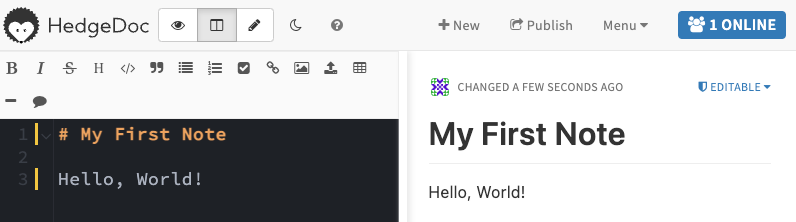
-
A disallowed user is blocked. Sign in as a user your policy excludes and open
https://hedgedoc.yourdomain.com. Pomerium denies access, so you never reach HedgeDoc.
Common failure modes
- Redirect loop or broken links inside HedgeDoc.
CMD_DOMAIN,CMD_PROTOCOL_USESSL, andCMD_URL_ADDPORTdon't match how Pomerium serves the route. Set the domain to the route host,CMD_PROTOCOL_USESSL=true, andCMD_URL_ADDPORT=false. - The editor never loads or notes don't sync. The WebSocket upgrade is being dropped. Confirm
allow_websockets: trueis set on the route (Core) or that Allow WebSockets is enabled (Zero). - Everyone gets signed out after a restart. No fixed
CMD_SESSION_SECRET. Set a stable, secret value so sessions survive restarts. - Certificate errors reaching the route. Make sure DNS for
hedgedoc.yourdomain.compoints at Pomerium and that Pomerium can obtain a TLS certificate. On the Core path,autocertneeds ports 80 and 443 reachable for Let's Encrypt; Zero manages certificates for you.
Security considerations
HedgeDoc has no idea Pomerium is in front of it; it simply trusts whatever can reach hedgedoc:3000. That makes the trust boundary entirely Pomerium's job, so don't expose HedgeDoc directly. Keep the hedgedoc container off published host ports and only reachable on the internal Docker network, so the only path in is through Pomerium's policy.
The Compose file above leaves HedgeDoc's default guest-note behavior in place, so anyone your Pomerium policy admits can open the editor without a separate HedgeDoc account. Treat the route policy as the outer perimeter and tighten HedgeDoc's own authentication settings if note creation should require local accounts. The demo database password is password; change it before running anything beyond a local demo.
Operations
To stop the stack without losing data, run docker compose down. The notes live in the hedgedoc-database volume and uploads in hedgedoc-uploads, so they survive a restart. Use docker compose down -v only when you want to delete those volumes and start clean.
To upgrade HedgeDoc, bump the pinned image tag (this guide uses 1.10.8; check the latest release), then docker compose pull && docker compose up -d. Review the HedgeDoc release notes for database migrations before upgrading across minor versions.