Bridge a Third-Party MCP Server
This guide is a concrete walkthrough of Model Context Protocol (MCP) bridging: fronting a third-party hosted MCP server with Pomerium Zero so your team can use it under your existing single sign-on (SSO). We'll use Linear's remote MCP server (https://mcp.linear.app/mcp) so the steps, policies, and screenshots stay concrete. The same pattern applies to any MCP server that publishes its OAuth configuration in a format Pomerium can discover automatically. That format is RFC 9728: OAuth 2.0 Protected Resource Metadata. In plainer terms: any MCP server that can tell Pomerium "here's where your users should authenticate," so you don't have to register an OAuth app with the provider by hand.
What this guide does
You'll end up with a single Zero route (for example, https://linear.slyfox-1234.pomerium.app/mcp) that any MCP client (Claude Desktop, ChatGPT, VS Code, the MCP Inspector) can add as an MCP server. When a user connects:
- Pomerium authenticates them with your identity provider (IdP) via SSO.
- Pomerium bridges them through Linear's OAuth flow the first time, caches the resulting Linear token, and refreshes it automatically. The MCP client never sees that token.
- Every tool call is evaluated against your Pomerium Policy Language (PPL) policy and logged with the user's identity and the tool name.
You manage access the same way you manage access to anything else behind Pomerium, and your internal apps never have to implement OAuth against Linear.
When to use this guide
Use this pattern when:
- Your team already uses Linear and you want AI agents (Claude, ChatGPT, Codex, internal chat apps) to call Linear tools on behalf of a signed-in user.
- You want to centralize MCP access control in Pomerium rather than letting every client negotiate its own OAuth with Linear.
- You want group-based access control and per-tool restrictions. This guide sets up the bridged route; Limit MCP Tool Calling is how you then add rules like read-only Linear for support, full access for engineering, or no
issue_deletefor anyone. - You want DevSecOps teams to have visibility into which users connect to which MCP servers and which tools they invoke, using the same Pomerium audit logs and policy layer you already rely on elsewhere.
Use a different blueprint when:
| What you're trying to do | Use this guide instead |
|---|---|
| Expose your own internal MCP server (no upstream OAuth) | Protect an MCP Server |
| Bridge a provider that requires you to manually register an OAuth app (Google Workspace, most enterprise SaaS) | MCP + Upstream OAuth: pre-registered credentials |
| Let a large language model (LLM) backend (OpenAI, Anthropic) call MCP servers on a user's behalf | Delegate MCP Access to an LLM |
| Run your own internal MCP server that calls an upstream API (e.g. internal service → GitHub REST) and want Pomerium to inject the upstream OAuth token | MCP + Upstream OAuth (same bridging machinery; just point to: at your own server) |
Who this is for
Platform, security, or DevOps engineers running a Pomerium Zero cluster who are comfortable editing routes and PPL policies in the Zero Console and who own the IdP that backs Pomerium authentication.
End users of the MCP route (the people installing Claude Desktop or VS Code's MCP client) do not need any of this. They just add the Pomerium URL as a server.
Prerequisites
Before you start, confirm all of the following:
- A working Pomerium Zero cluster that you own, with a custom or default cluster starter domain. This guide uses
slyfox-1234.pomerium.appas the example cluster hostname in URLs and screenshots; substitute your own cluster hostname wherever you see it. If you don't have a cluster yet, follow the Pomerium Zero Quickstart first. - A persistent databroker backend. Prefer Pebble by setting a
file://connection string under Settings → General in the Zero Console. Don't use the in-memory default: it loses the upstream OAuth state Pomerium caches per user, which forces every user to re-authorize Linear on every restart. See Databroker Storage Settings for the full reference. - Authentication configured. Pomerium Zero's default hosted authenticate works out of the box. You can also bring your own IdP if needed.
- A Linear workspace, and permission from a Linear admin for members to authorize a third-party OAuth client (the client will be Pomerium). No Linear OAuth application registration is required. Linear's MCP server advertises its own authorization metadata and Pomerium registers itself automatically.
- An MCP-capable client for testing. This guide uses the MCP Inspector (
npx @modelcontextprotocol/inspector@latest) because it exposes the raw OAuth and tool-call steps. Claude Desktop, ChatGPT, VS Code, and Cursor also work once the route is live. - DNS for the route's
fromsubdomain resolves to your Pomerium Zero cluster. On*.<your-cluster>.pomerium.appsubdomains this is automatic; for custom domains see Custom Domains. - As of v0.33.0, MCP is not experimental and does not require a runtime flag.
- At least one policy exists in your cluster that you can attach to the Linear MCP route. A route needs a policy to allow anything; if you haven't created any yet, follow Zero Build Policies to create a simple domain-based policy first, or plan to create one inline from the route editor in step 3.
Architecture and request flow
Pomerium sits between the MCP client and Linear. It holds two distinct tokens for every active session:
- External Token (TE): the token Pomerium issues to the MCP client after SSO. This is what Claude Desktop or VS Code sees and sends. Think of it as "the client's Pomerium session."
- Internal Token (TI): the upstream OAuth access token Linear issues to Pomerium after the user completes Linear's consent screen. Pomerium caches it per-user and attaches it to proxied requests to
mcp.linear.app. The client never sees it. Think of it as "Pomerium's cached Linear token on behalf of this user."
The authorization server (AS) in the sequence diagram below is the OAuth service that issues tokens, run by Linear for the upstream side and by Pomerium for the downstream side.
The first connection looks like this:
Subsequent calls skip everything from the 401 down to OAuth consent. Pomerium reuses the cached Linear token (the TI from the bullets above) and refreshes it when it expires.
Trust boundaries to keep in mind:
- The MCP client trusts Pomerium's certificate on the
fromhost. It has no direct relationship with Linear. - Pomerium trusts Linear's authorization server (AS) metadata at
mcp.linear.app. That host must be explicitly allowed in the Allowed AS Metadata Domains subsection of Settings → MCP (step 1). - Linear's OAuth consent screen is the only place a user can scope down what Pomerium is allowed to see. If a user has read-only Linear access, the cached upstream token will too.
Bridge the Linear MCP server
You'll do this entirely in the Zero Console, with a quick check from the command line at the end.
The Zero Console has three distinct settings surfaces you'll touch in this guide. Knowing which is which up front will save confusion:
| Where | What it controls | Used in |
|---|---|---|
| Settings → MCP (cluster-wide) | Server-Side Request Forgery (SSRF) allowlists for OAuth metadata discovery (the Allowed AS Metadata Domains and Allowed Client ID Domains subsections) | Step 1 |
| Route editor → Advanced tab → MCP panel (per route) | Route-level MCP properties (server vs. client mode, path the MCP server is served at, pre-registered upstream credentials) | Step 2 |
| Settings → Logging (cluster-wide) | Access and authorize log field selection, including the MCP-specific mcp-method, mcp-tool, and mcp-tool-parameters fields | Step 4 |
1. Allow Linear's metadata domain
Linear's MCP server advertises its authorization server via RFC 9728 Protected Resource Metadata. Pomerium must be allowed to fetch that metadata, so add mcp.linear.app to the cluster-wide allowlist.
In the Zero Console:
- In the left nav, click Settings, then go to the MCP section in the main cluster settings. This is a dedicated panel (separate from the Advanced section further down) that controls SSRF allowlists for MCP OAuth metadata discovery.
- Under the Allowed AS Metadata Domains subsection, click the + and enter
mcp.linear.app. - Click Save Settings.
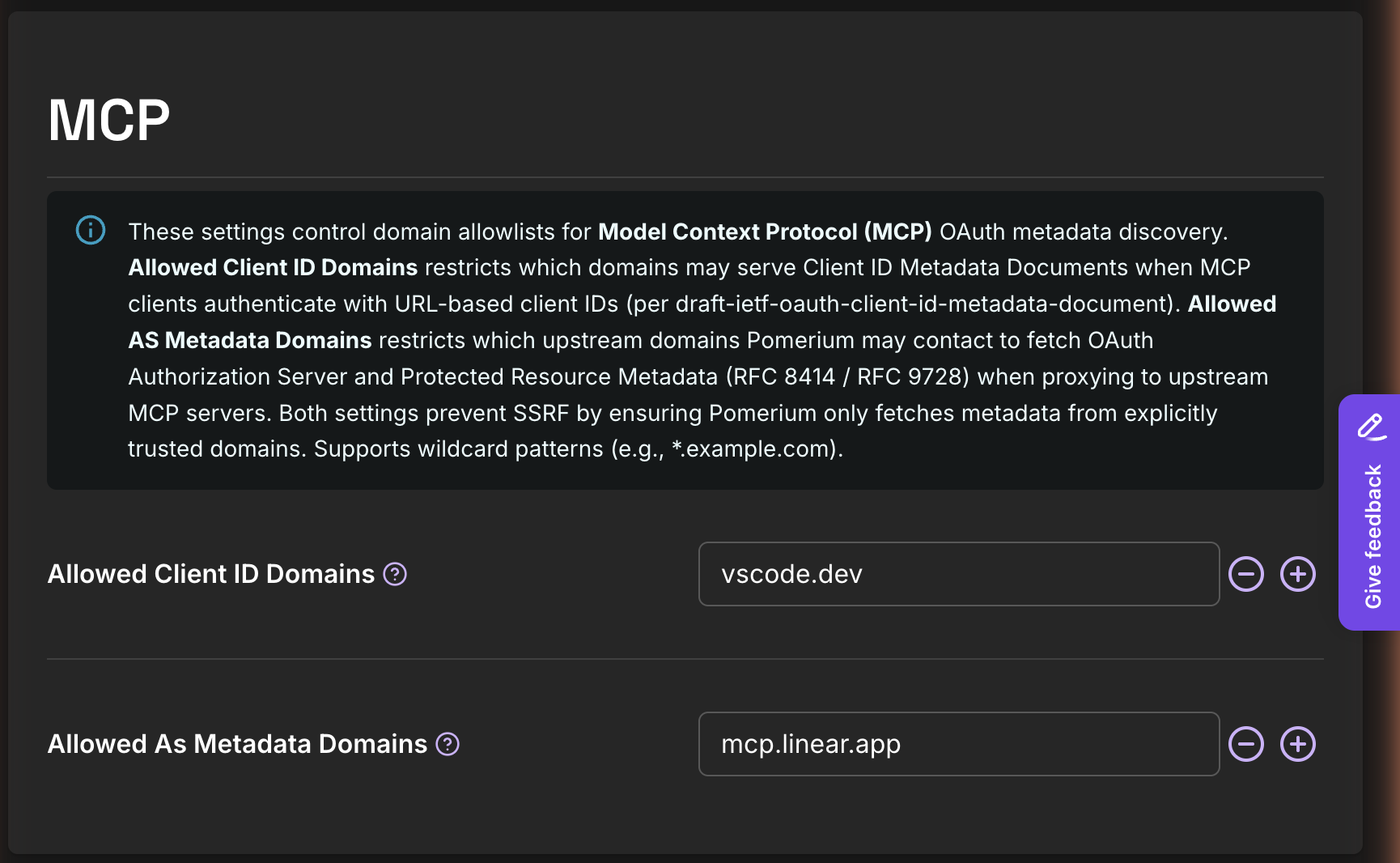
This section also contains the Allowed Client ID Domains subsection, a related but separate allowlist for MCP clients that authenticate using URL-based client IDs. The default list includes vscode.dev, which is what this guide uses as the test client. Add other hosted MCP clients you want to permit, for example claude.ai or chatgpt.com. Leave the default in place if you only need VS Code.
If you skip this step, the first client connection will fail with a log line like mcp: upstream AS metadata domain not allowed. See Troubleshooting.
2. Create the MCP route
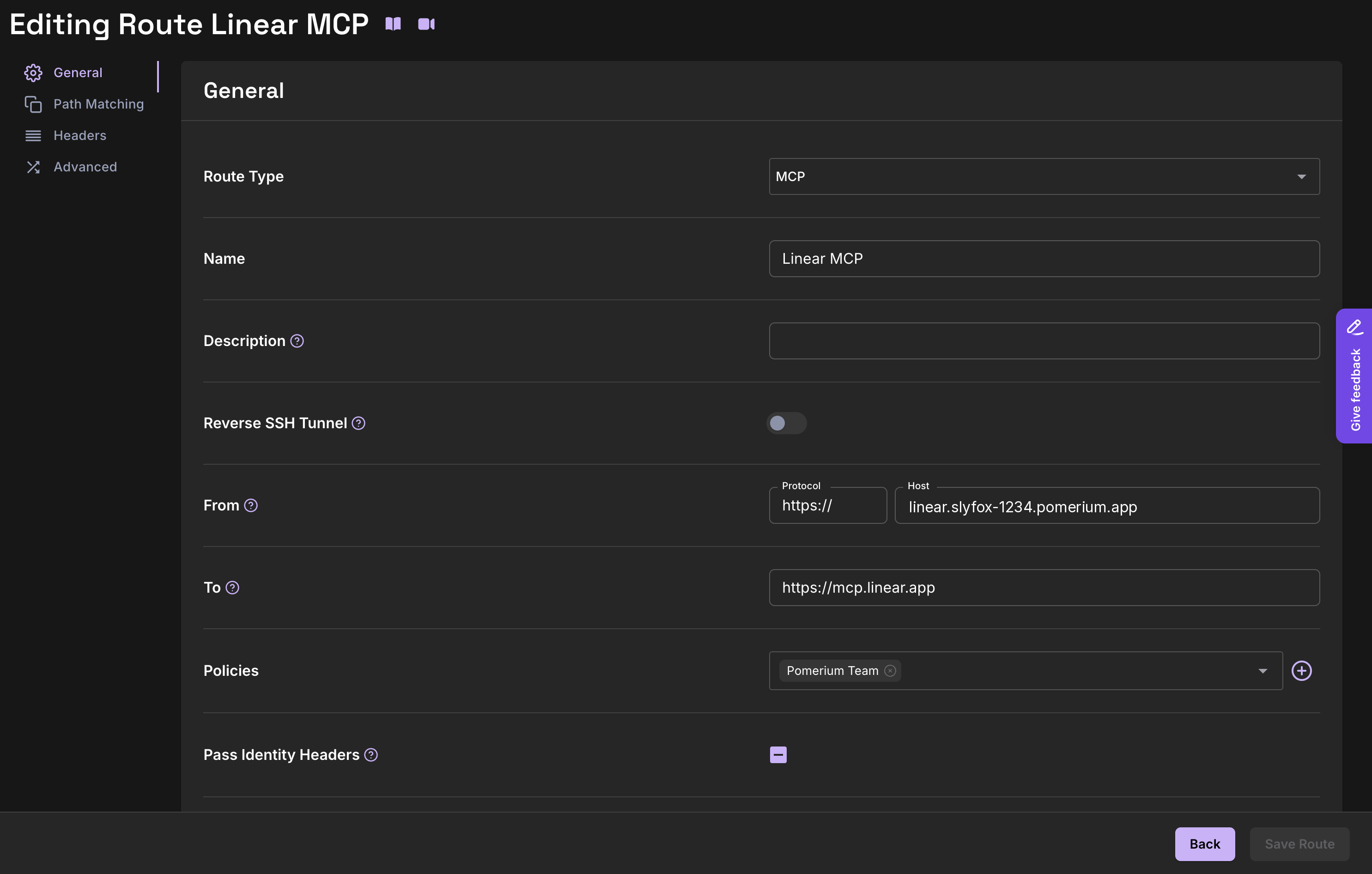
In the Zero Console, go to Routes → New Route. On the General tab, fill in:
| Field | Value |
|---|---|
| Route Type | Set to MCP |
| Name | Linear MCP |
| From → Host | linear.slyfox-1234.pomerium.app |
| To | https://mcp.linear.app/mcp |
| Policies | leave empty for now; you'll attach one in step 3 |
| Pass Identity Headers | leave default |
Click Save Route. The route will show up with Assigned: None until you attach a policy. The screenshot below was captured after the policy in step 3 was attached; for this step, use it to confirm the route type, From, and To fields.
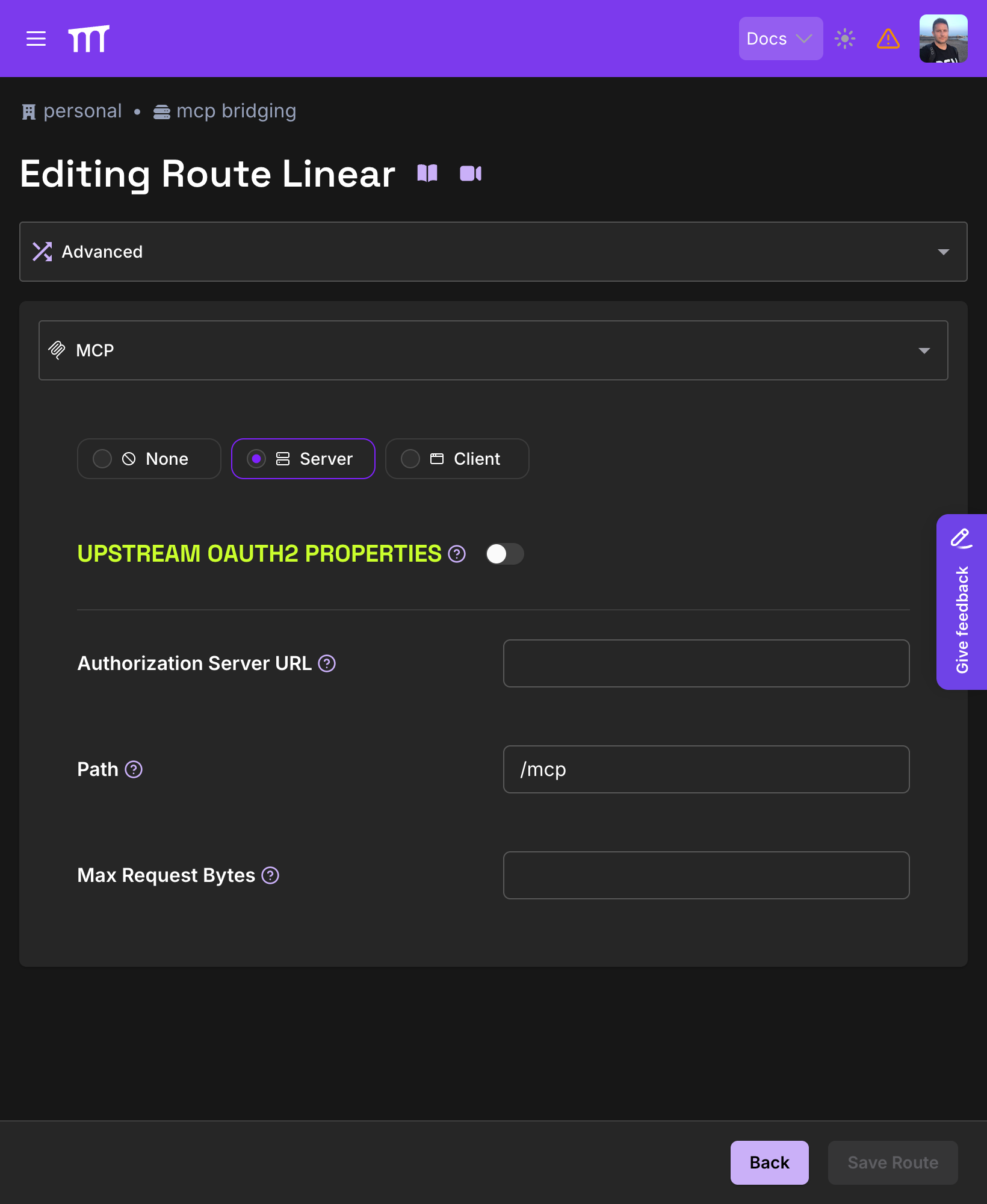
After saving, open the route again and go to Advanced → MCP. Set Path to /mcp (Linear's MCP endpoint) and leave everything else at its defaults. That's enough to enable auto-discovery: Pomerium registers itself with Linear via a Client ID Metadata Document (CIMD) on the first connection and caches the registration.
3. Create and attach an authorization policy
This is the point of the whole exercise. You'll create a reusable policy and attach it to the Linear MCP route. You can do this inline from the route's Policies field or from the dedicated Policies page; the steps below use the Policies page so the policy is reusable across future routes.
- In the left nav, click Manage → Policies, then New Policy.
- On the General tab, set Name to
Pomerium Team. - Leave Policy Enforcement on its default.
- Click Add Allow Block (green). An empty
ALLOWblock appears with a+icon. - Click the
+, then pick And. A condition row is added with three dropdowns: Criteria, Operator, and a value field. - Set:
- Criteria:
Domain - Operator:
Is - Domain:
pomerium.com(substitute your own email domain)
- Criteria:
- Click Save Policy.
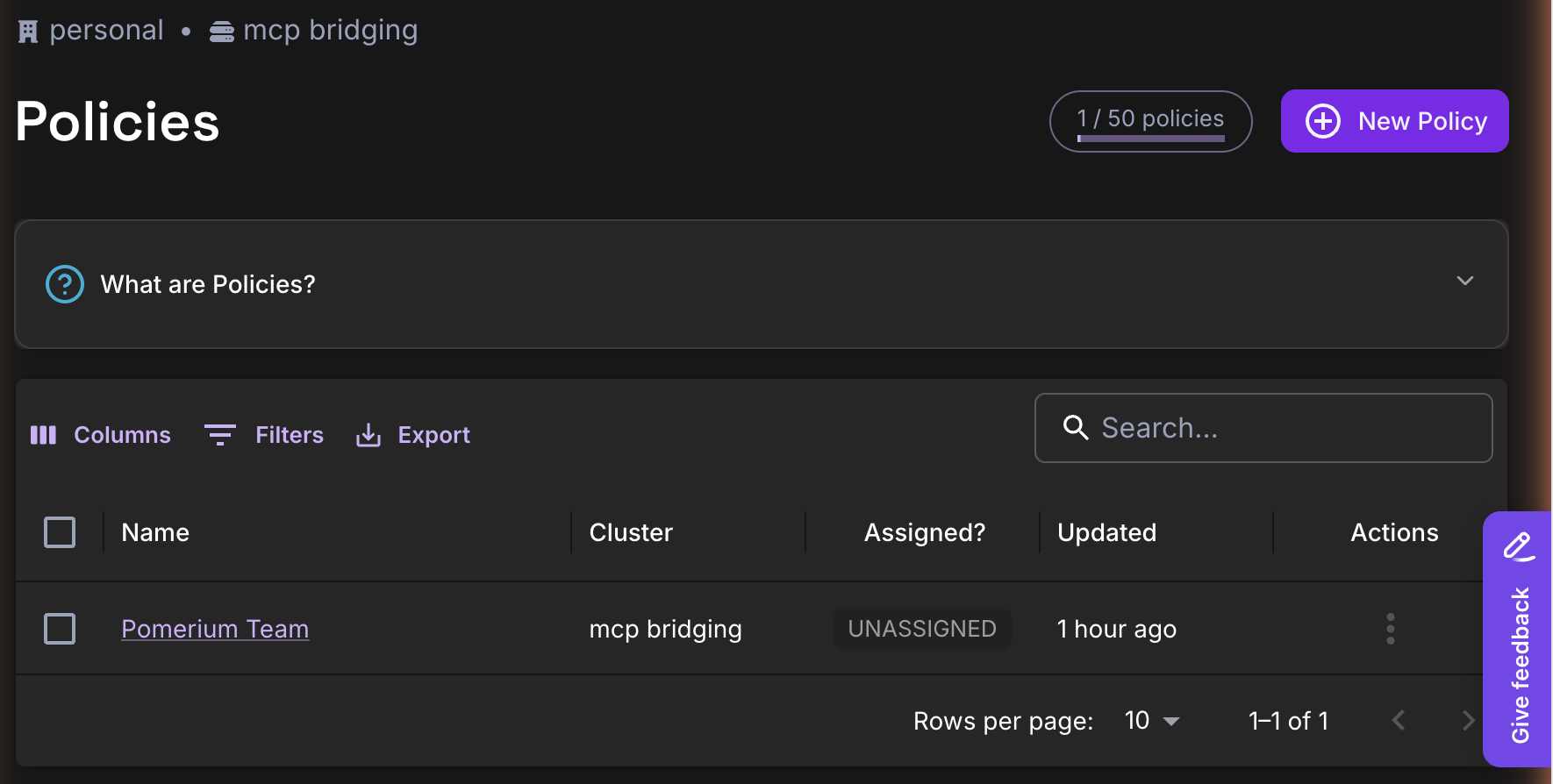
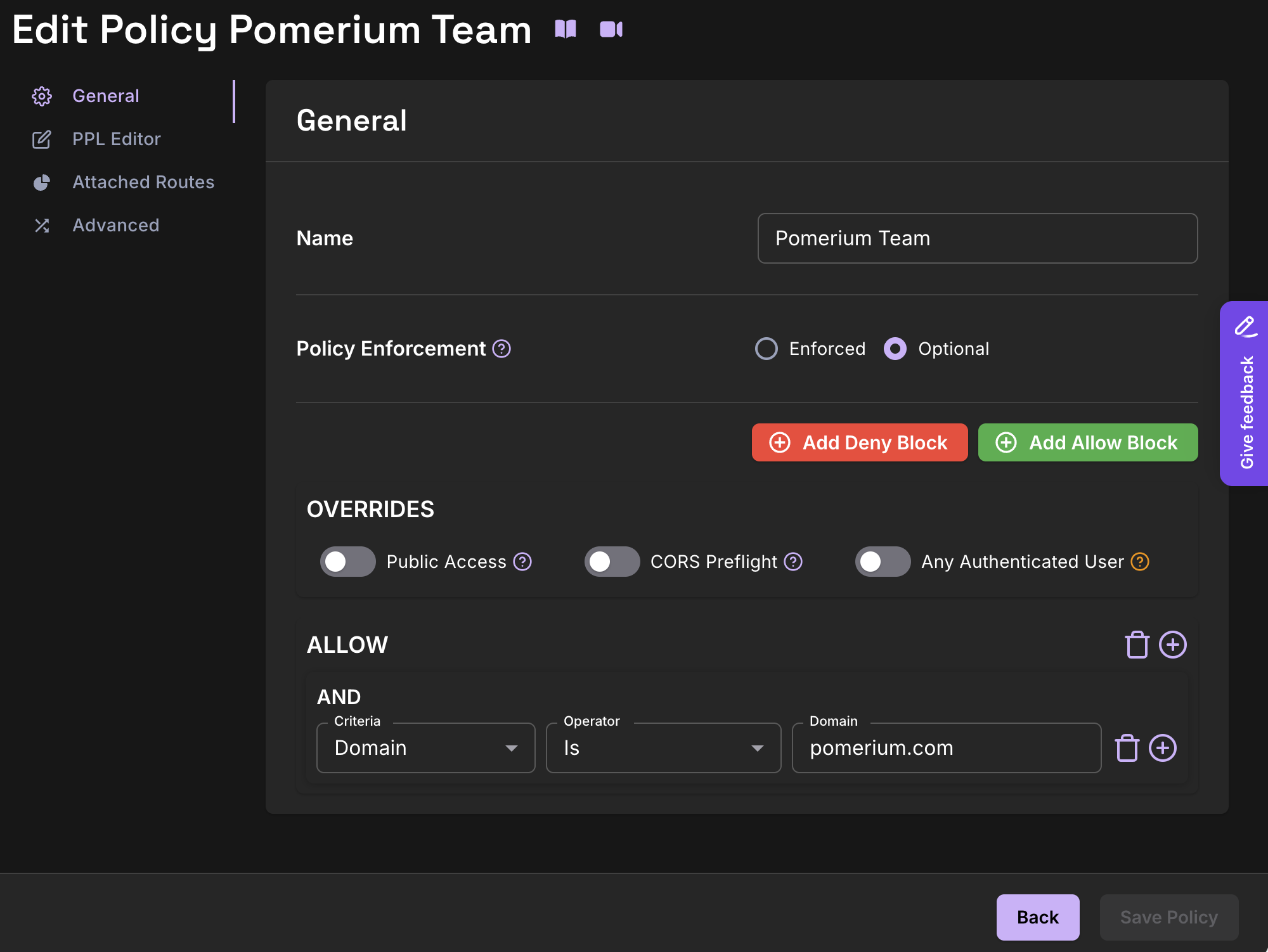
Now attach the policy to the route:
- Go back to Manage → Routes and click the
Linear MCProute. - On the General tab, click the Policies dropdown and select
Pomerium Team. - Click Save Route. The route row will now show Assigned: 1 Policies.
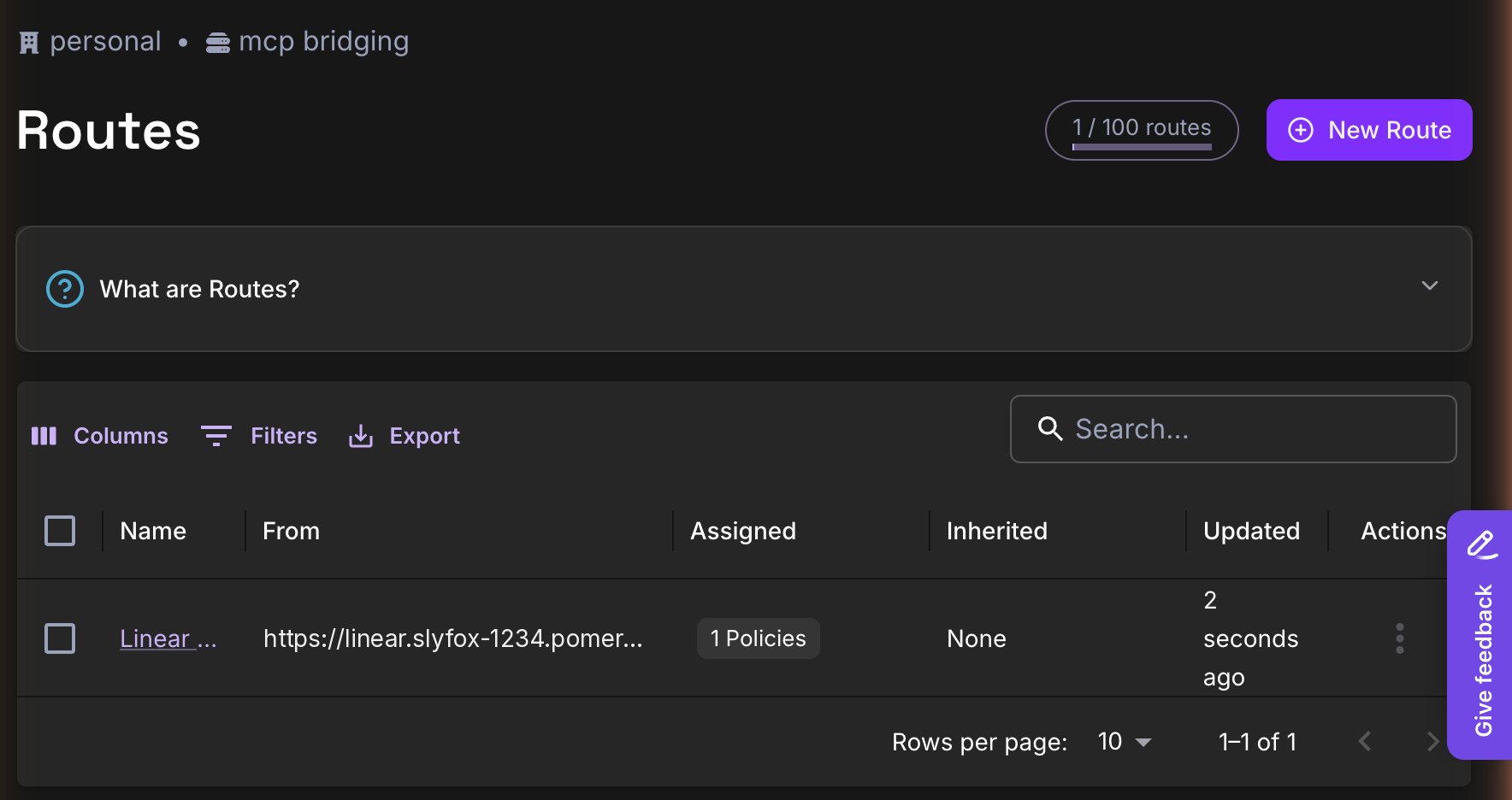
At this point anyone with a verified email at your configured domain can sign in and connect the MCP client.
Once this domain-only policy is working, see Limit MCP Tool Calling for how to layer on group-based access (for example, read-only Linear for support versus full access for engineering) and per-tool deny rules (for example, blocking issue_delete organization-wide). That blueprint covers the mcp_tool criterion in full, including prefix and allowlist patterns, and is where all of Pomerium's tool-restriction guidance lives.
4. Enable MCP-aware audit logging
In Settings → Logging, scroll to Authorize Log Fields, select Custom Logged Fields, and check at least the fields below. The MCP-specific entries (mcp-method, mcp-tool, and mcp-tool-parameters) are the reason this step matters: without them, your authorize logs record that a request happened but not which tool was called or with what arguments.
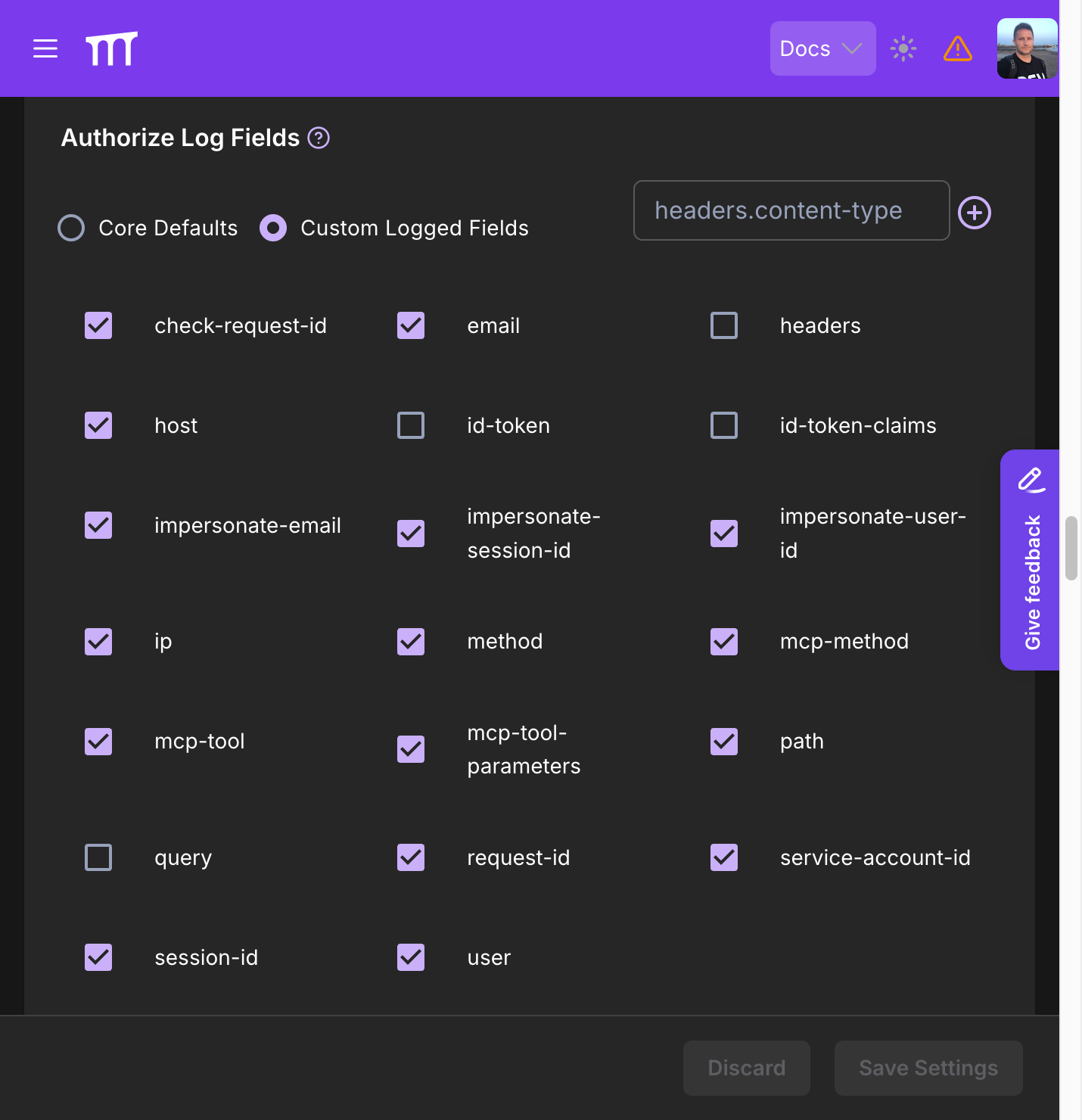
Without this, your authorize logs won't tell you which tool was called or by whom, and Checkpoint 4 below depends on it.
5. Connect an MCP client
From any machine with Node installed:
npx -y @modelcontextprotocol/inspector@latest
In the Inspector UI:
- Transport type: Streamable HTTP.
- URL: the MCP server URL with
/mcpat the end, for examplehttps://linear.slyfox-1234.pomerium.app/mcp. - Leave Authentication collapsed (Client ID and Client Secret empty). The Inspector will run its quick OAuth flow automatically on connect.
- Click Connect.
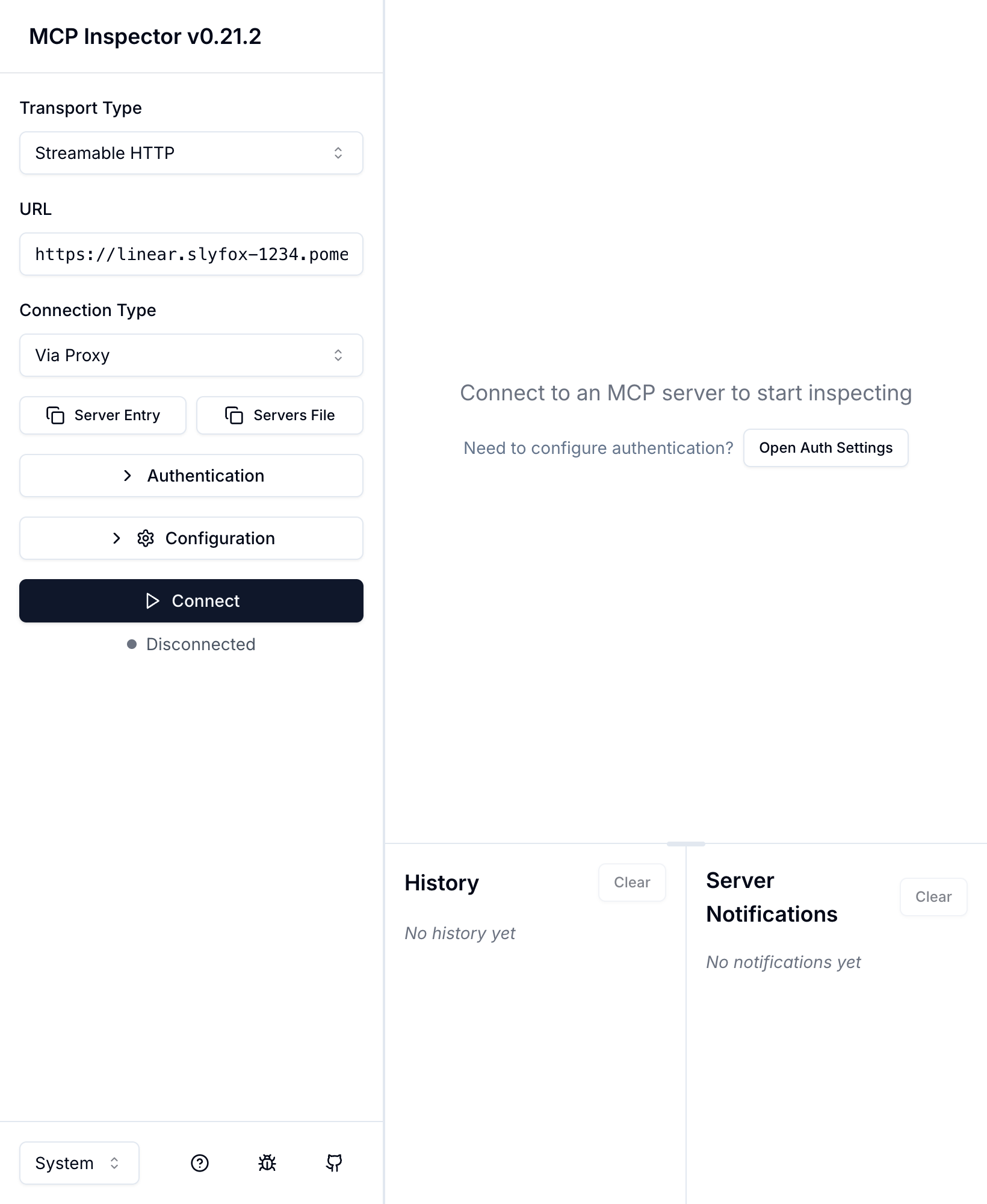
You'll be redirected through two sign-ins in sequence: first Pomerium → your IdP, then Pomerium → Linear. After the second one you land back in the Inspector with a green Connected status on the connection banner.
If you need to re-authenticate later (for example, to switch accounts or retry after a failed bridge flow), expand Authentication Settings in the sidebar and click Quick Refresh. Clear OAuth State in the same panel wipes the cached tokens and forces a full re-consent on the next connect.
The MCP Inspector works under the default Allowed Client ID Domains list (vscode.dev). If you edited that list in step 1 and removed vscode.dev, either add it back before running Inspector or add Inspector's origin explicitly. Other hosted clients (Claude Desktop, ChatGPT) register through their own origins. Add them to the allowlist when you test those.
Verify the setup
Run these four checks in order. Every one of them has a specific expected result; if you see something different, skip down to Common failure modes.
Checkpoint 1: Route resolves and requires auth
curl -sS -o /dev/null -w '%{http_code}\n' \
  https://linear.slyfox-1234.pomerium.app/mcp
Expected: 401 or 302 (redirect to the Pomerium sign-in page). If you see 404 or Could not resolve host, DNS isn't pointing at the cluster yet.
Checkpoint 2: OAuth bridge completes
In the MCP Inspector, after clicking Connect, you should:
- Be redirected to your IdP sign-in (once).
- Then be redirected to a Linear Authorize screen listing Pomerium as the client and showing the requested scopes.
- Then land back in the Inspector with a green Connected status on the connection banner.
If you see the IdP sign-in but Linear's consent screen never appears, the route isn't fully configured as an MCP server route. Re-open the route in the Zero Console and confirm Route Type: MCP is set on the General tab and that Advanced → MCP matches the screenshot in step 2 (Server mode, Path /mcp, Upstream OAuth2 Properties off). A route without Route Type MCP will proxy to Linear but won't trigger the bridging handshake, and a missing or wrong Path will break the MCP discovery Pomerium advertises back to clients. The other common cause is mcp.linear.app missing from the Allowed AS Metadata Domains subsection under Settings → MCP (step 1).
Checkpoint 3: tools/list returns Linear tools
In the Inspector, open Tools → List Tools. You should see Linear's tool set, for example issue_create, issue_update, issue_search, project_list, comment_create, and so on. Exact names depend on Linear's current MCP build.
If tools/list errors or returns empty, check both logs in the Zero Console: Logs → Authorize for policy denials (entries with "allow-why-false") and Logs → Proxy for upstream OAuth failures (entries mentioning upstream_oauth2 or resource_metadata). A missing Linear token surfaces in the proxy log; a blocked request surfaces in the authorize log.
Checkpoint 4: Authorize log records the tool call
Call a cheap read tool from the Inspector, for example issue_search with a simple query. Then open Logs → Authorize in the Zero Console and filter by your email.
You should see a log entry like:
{
  "request-id": "...",
  "email": "you@pomerium.com",
  "mcp-method": "tools/call",
  "mcp-tool": "issue_search",
  "mcp-tool-parameters": {"query": "cfp"},
  "allow-why-true": ["domain-ok", "mcp-tool-ok"],
  "allow-why-false": []
}
The reasons in allow-why-true come from the PPL evaluator. For this guide's domain-only policy that's domain-ok (domain matched) and, for tool calls, mcp-tool-ok (no tool-specific rule blocked the call). The mcp-tool-parameters object echoes the arguments the MCP client passed to the tool, which is useful for audit but may contain data you'd rather not retain; redact or drop that field in your log pipeline if that's a concern.
After you add tool restrictions from Limit MCP Tool Calling, repeat this checkpoint with a blocked tool. A denied issue_delete call should show "allow-why-false": ["mcp-tool-unauthorized"] and Pomerium should return 403 to the client.
This flow depends on a managed Pomerium Zero control plane, Linear's hosted MCP server, and interactive OAuth consent from a real MCP client. Confirm it end to end by running the four checkpoints above against your own cluster. If you layer on tool restrictions, verify a blocked tool call as a separate hardening check.
Common failure modes
| Symptom | Likely cause | What to check | Fix |
|---|---|---|---|
Inspector connects but tools/list is empty | Upstream OAuth didn't complete; Pomerium has no cached Linear token for this user | Zero Console Logs → Proxy, search for upstream_oauth2 and resource_metadata warnings | Re-run the connect flow. If Linear's consent screen never appeared, add mcp.linear.app to Settings → MCP → Allowed AS Metadata Domains and save. |
Connect flow hangs on mcp.linear.app with a browser error | Linear's consent screen rejected Pomerium's client registration | Open the browser devtools network tab during OAuth; look for a 4xx from mcp.linear.app or Linear's authorization server | Usually a stale Client ID Metadata Document (CIMD) entry. Wait for Pomerium to retry, or restart the route from the Zero Console so the client registration is re-initialized. |
| First user works, second user gets "not connected" in the Inspector | You're confusing session state: each user has their own cached Linear token. The first user's session doesn't grant access for anyone else. | Sign in as the second user in a fresh browser profile and complete the Linear consent once | This is expected behavior. Per-user connection state is documented under Per-User Connection Management. |
| Policy change had no effect | The cached Pomerium-issued client token (TE) is stale, or no replica is connected to the cluster | Zero Console: confirm the route shows the policy under Assigned; check Reports → Status for a connected replica; sign out of the MCP client and reconnect | Policies apply on the next MCP request once the replica has picked them up. If Status reports no active replicas, nothing is enforcing the config. Attach a replica via the Zero Quickstart. |
401 mcp: upstream AS metadata domain not allowed in proxy logs | The Allowed AS Metadata Domains subsection under Settings → MCP is missing mcp.linear.app | Settings → MCP → Allowed AS Metadata Domains | Add the entry and save. |
Tools worked earlier in the session; suddenly all tool calls return 401 (or the client disconnects) | Upstream refresh token failed. Common causes: the user revoked Pomerium in Linear, Linear rotated the token out, or the cached refresh token is stale | Zero Console Logs → Proxy: look for upstream_oauth2 refresh failures attributed to the user | Have the user reconnect from the MCP client. Pomerium will re-run the Linear consent flow and cache a fresh TI. If this is happening cluster-wide, check that system clocks are in sync. Large skew can cause refresh tokens to be rejected by Linear. |
| After a Pomerium restart, every user is asked to re-authorize Linear | Databroker is configured with the in-memory backend (or its storage has been wiped), so the cached TI tokens and CIMD registration are gone | Zero Console Settings → General → Databroker Storage Connection String; verify a file:// or postgres:// value is set | Set a Pebble connection string like file:///var/lib/pomerium (or a Postgres one if that's what you use). See Databroker Storage Settings. |
Security considerations
- The upstream token represents the user, not Pomerium. If a user has write access to
#corein Linear, the agent using this bridge does too, within the limits of your PPL policy. Treat MCP bridging as "Linear with an LLM keyboard." Layer group scoping andmcp_tooldeny rules on top of this guide's domain-based policy to shrink the blast radius before anyone connects for the first time; see Limit MCP Tool Calling for both patterns. - Put destructive tools under
deny, not behind an honor system. Linear exposes tools that delete issues, archive projects, and manage workspace membership. A model that hallucinates an argument can call those tools just as readily as a useful one. When you add a tool-restriction policy, blockissue_delete,project_delete,comment_delete, and anything else whose loss you can't easily recover from, and apply that block globally (including to privileged groups) unless you have a specific reason to relax it. - Audit, don't trust. Enable the
mcp-toolandmcp-methodaudit log fields from step 4 and route them to wherever your team already aggregates security-relevant logs. That could be a Security Information and Event Management (SIEM) platform like Splunk or Elastic Security, an observability backend like Grafana (Loki for the log fields, Tempo for the OTel traces Pomerium already emits), or a combined platform like Datadog or Honeycomb. Every tool call is attributed to the end user's email, not to a service credential, which is the whole point of bridging, and it only pays off if the logs actually land somewhere searchable. - Secrets: there are none to store, but the CIMD registration is still state. Auto-discovery uses CIMD, so there's no
client_secretto rotate for the Linear bridge. The client registration Pomerium negotiates with Linear is cached in the databroker and reused across restarts. That's another reason the persistent-backend prerequisite matters. If you ever switch to pre-registered credentials for another provider, store the secret in your config management or secret manager and limit who can read it. See the MCP + Upstream OAuth reference for the static-credential variant. - Rotating upstream tokens means clearing databroker state, not just revoking in Linear. Each user's Linear access + refresh token is cached server-side in the databroker. Revoking the user in Linear will prevent future refreshes from succeeding, but the currently cached access token will continue to work until it expires. If you need to forcibly cut a user off immediately (for example during offboarding), revoke them in Linear and remove the user's session from Pomerium so the cached TI is no longer associated with any valid Pomerium session.
- Domain allowlists are an SSRF control. The Allowed AS Metadata Domains and Allowed Client ID Domains subsections under Settings → MCP exist to prevent a malicious upstream response from pointing Pomerium at an arbitrary host. Keep them narrow, one provider at a time.
- TLS is non-optional. The
fromURL must be HTTPS; Pomerium Zero handles this automatically for*.<cluster>.pomerium.appand for custom domains configured per Custom Domains.
Next steps and related guides
- MCP + Upstream OAuth: the full reference for bridging, including the static or pre-registered credential variant used for Google Workspace and most enterprise SaaS.
- Limit MCP Tool Calling: more patterns for the
mcp_toolcriterion, including allowlists withnot_in. - Delegate MCP Access to an LLM: let an LLM backend call this Linear bridge on behalf of a user.
- Protect an MCP Server: the bridge's counterpart, fronting your own internal MCP server with Pomerium.
- MCP Full Reference: token types, session lifecycle, every config field.