Secure GitLab with Pomerium
What this guide does
You'll put a self-hosted GitLab instance behind Pomerium so that Pomerium becomes the single front door: every request is authenticated against your identity provider and checked against your policy before it ever reaches GitLab. GitLab keeps running its own login and authorization on top, so Pomerium acts as an additional gate rather than replacing GitLab's accounts.
When to use this guide
Use it when you run self-hosted GitLab and want to make sure only people from your organization can even reach it, without exposing GitLab's web interface directly to the internet. Pomerium handles the network-level access decision; GitLab continues to manage projects, permissions, and its own user sessions behind that gate.
If you instead want to reach GitLab over a private network without a browser SSO flow (for example, plain Git over SSH), a TCP route is a better fit.
Prerequisites
This guide assumes you've completed the Quickstart, so you already have Pomerium running and signing users in through the hosted authenticate service.
You also need:
- Docker and Docker Compose
- A domain you control for the GitLab route (this guide uses
gitlab.yourdomain.com)
Pomerium can use self-hosted GitLab as an identity provider, but do not do that while also running GitLab behind Pomerium. You risk locking yourself out of every route if the IdP becomes unreachable, and it's best practice to keep your identity provider separate from the services it protects, especially one holding source code.
This guide uses the hosted authenticate service so you don't have to run an IdP. To run your own instead, follow Keycloak + Pomerium and swap the authenticate_service_url / idp_* settings into the config below.
Configure Pomerium
- Pomerium Zero
- Pomerium Core
In the Zero Console:
- Create a Route. In From, enter
https://gitlab.<your-starter-domain>; in To, enterhttp://gitlab:80. - On the route's settings, enable Preserve Host Header. GitLab builds its redirect URLs from its own
external_url, so the original host must reach GitLab unchanged. - Set the policy to scope access to who should reach GitLab (for example, Any Authenticated User or a specific group or domain).
Create a config.yaml. It routes gitlab.yourdomain.com to the GitLab container and preserves the host header so GitLab's redirects stay correct.
# Pomerium Core configuration for GitLab. Uses the hosted authenticate service, so
# you don't run your own identity provider. To self-host the IdP, see the Keycloak
# guide: https://www.pomerium.com/docs/integrations/user-identity/oidc
authenticate_service_url: https://authenticate.pomerium.app

# Obtain TLS certificates automatically from Let's Encrypt.
autocert: true

routes:
  - from: https://gitlab.yourdomain.com
    to: http://gitlab:80
    # GitLab builds redirect URLs from its own external_url, so forward the
    # original Host header to keep those redirects pointing at the public name.
    preserve_host_header: true
    policy:
      - allow:
          or:
            - email:
                is: you@example.com
Replace gitlab.yourdomain.com with your domain and you@example.com with the email (or switch to a group or domain match) that should be allowed through.
Configure GitLab
GitLab's Omnibus configuration only needs to know its public URL and to serve plain HTTP on the internal Docker network, since Pomerium terminates TLS at the front door. The key settings in the Compose file below:
external_url 'https://gitlab.yourdomain.com'— GitLab generates links and redirects from this value, so it must match the public route host, not the container name.nginx['listen_port'] = 80andnginx['listen_https'] = false— GitLab listens on plain HTTP inside the network; Pomerium handles HTTPS for users.letsencrypt['enable'] = false— Pomerium, not GitLab, manages the public certificate.
GitLab keeps its own login. The first time you reach it, sign in as root with the initial password, which GitLab writes to a file inside the container:
docker compose exec gitlab grep 'Password:' /etc/gitlab/initial_root_password
Run the stack
The Compose file below runs Pomerium and GitLab together. Wire up Pomerium for your deployment, then start the stack:
- Pomerium Zero
- Pomerium Core
Drop the pomerium service and use the compose.yaml from the Quickstart with your POMERIUM_ZERO_TOKEN, keeping the gitlab service shown below.
Keep the pomerium service shown below and place the config.yaml from the previous step next to this docker-compose.yaml.
services:
  pomerium:
    image: pomerium/pomerium@sha256:e10d1d267af24f581157f485d9b0bc08469e2428675b696a08e42ceb09b2279c # v0.32.7
    volumes:
      - ./config.yaml:/pomerium/config.yaml:ro
      - pomerium-cache:/data
    ports:
      - 443:443
      - 80:80
    restart: always

  gitlab:
    image: gitlab/gitlab-ce@sha256:c7082004a0f64123634fda345e849453d52956621893bed7d2218fa6f088247f # 19.0.1-ce
    environment:
      GITLAB_OMNIBUS_CONFIG: |
        external_url 'https://gitlab.yourdomain.com'
        letsencrypt['enable'] = false
        nginx['listen_port'] = 80
        nginx['listen_https'] = false
    volumes:
      - gitlab-config:/etc/gitlab
      - gitlab-logs:/var/log/gitlab
      - gitlab-data:/var/opt/gitlab
    shm_size: '256m'
    restart: always

volumes:
  pomerium-cache:
  gitlab-config:
  gitlab-logs:
  gitlab-data:
docker compose up -d
GitLab is heavy and slow to initialize. The container can take several minutes before it answers requests; watch docker compose ps until its status changes from health: starting to healthy, or follow docker compose logs -f gitlab.
Verify the setup
- The route requires authentication. In a fresh browser, open
https://gitlab.yourdomain.com. You should be redirected to sign in through Pomerium, not straight to GitLab. - An allowed user reaches GitLab. Sign in with a user your policy allows. Pomerium redirects you back and GitLab's own sign-in page loads behind the gate.
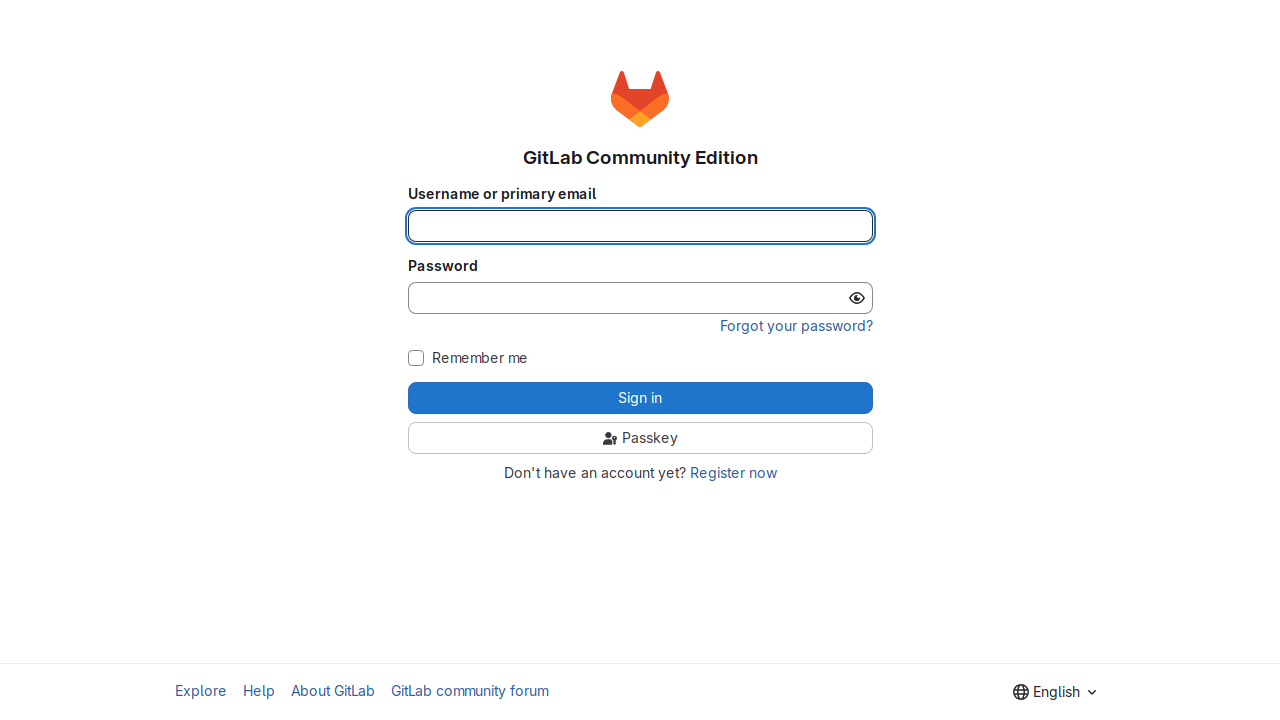
- Sign in to GitLab. Use the
rootaccount and the initial password from the previous section. GitLab authenticates you and lands you on its dashboard, served through Pomerium.
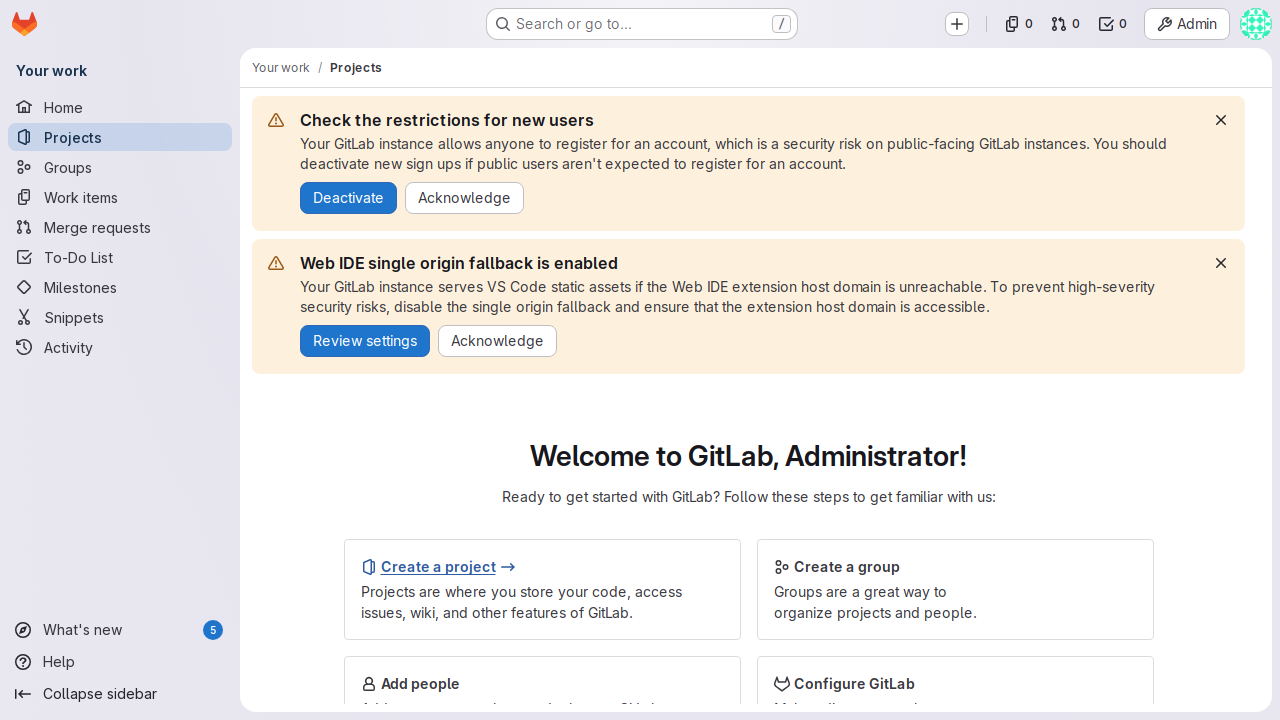
- A disallowed user is blocked. Sign in as a user your policy excludes and open
https://gitlab.yourdomain.com. Pomerium denies access, so the request never reaches GitLab's sign-in page.
Pomerium gates the route; GitLab runs its own login on top. GitLab's root login and first-run setup are GitLab's concern, not Pomerium's.
Common failure modes
- Redirects send you to the container name or the wrong host. GitLab's
external_urldoesn't match the public route, orpreserve_host_headerisn't set. Make both agree ongitlab.yourdomain.com. 502or503right afterdocker compose up. GitLab hasn't finished booting. Wait for the container to reporthealthy; first boot routinely takes several minutes and a couple of GB of RAM.- Mixed-content or TLS errors. Make sure GitLab serves plain HTTP internally (
nginx['listen_https'] = false) and that Pomerium is the only service terminating TLS for the public hostname.
Security considerations
- GitLab runs its own authentication, so Pomerium here is a front-door gate, not a header-trust integration. Even so, don't expose GitLab directly — only Pomerium should reach
gitlab:80. Keep GitLab off published host ports and on the internal Docker network so the policy can't be bypassed. - Scope the route policy (group or domain) to who should have any access to GitLab at all. GitLab's project-level permissions still apply on top of that.
- Do not point Pomerium's identity provider at this same GitLab instance. Keeping the IdP separate avoids a circular dependency that can lock you out of every route at once.